
Technology
Motherboard Repair: Diagnosis, Common Faults, Repair Options, and When to Replace

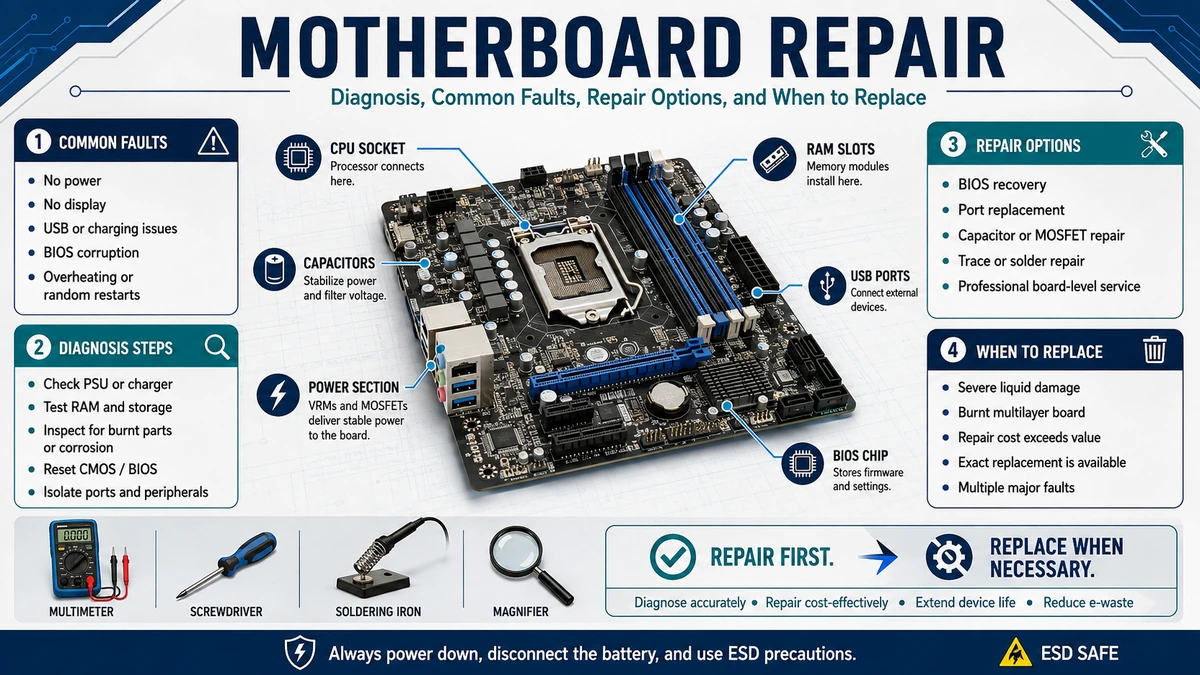
I see motherboard repair as one of the most misunderstood areas of computer troubleshooting. When a desktop or laptop refuses to power on, repeatedly restarts, produces no display, loses USB ports, or behaves unpredictably, the motherboard often receives the blame immediately. That diagnosis can be correct, but it can just as easily be a failed power supply, damaged charger, faulty RAM module, graphics problem, corrupted BIOS, disconnected cable, defective battery, or another component preventing the system from starting.
A motherboard sits at the center of almost every major computer function. The processor, memory, storage devices, graphics hardware, network controllers, USB ports, power circuitry, firmware, and numerous peripheral interfaces ultimately communicate through the board. iFixit summarizes its importance in unusually direct language:
“The motherboard is Control Central for a computer.”
iFixit.
In my analysis, that central role explains why diagnosing motherboard failures requires patience. A malfunction elsewhere can look almost identical to a defective motherboard because so many components depend on the board to operate. Good repair therefore begins with isolation and testing rather than immediately replacing chips or ordering a new board.
This guide explains what motherboard repair actually involves, how motherboard failures present themselves, which problems may be repairable, how technicians diagnose board-level faults, when DIY troubleshooting is reasonable, and when replacing the motherboard is the more practical decision.
Key Takeaways About Motherboard Repair
- Motherboard repair can mean anything from correcting a BIOS problem or bent socket pin to replacing damaged components directly on the circuit board.
- A computer that does not turn on does not automatically have a failed motherboard.
- Power supplies, RAM, graphics cards, batteries, chargers, displays, peripherals, and corrupted firmware can imitate motherboard failure.
- Electrostatic discharge can damage electronic components, so ESD precautions matter when handling a motherboard.
- BIOS corruption can sometimes be recovered without replacing the motherboard if the board supports a recovery mechanism.
- Visible damage such as burnt components, corrosion, damaged connectors, bulging capacitors, or bent CPU socket pins can help narrow the diagnosis.
- Desktop motherboards are generally easier to isolate and replace than highly integrated laptop boards.
- Component-level motherboard repair requires considerably more skill and equipment than swapping replaceable PC parts.
- Lithium-ion laptop batteries should be disconnected carefully, and a swollen battery requires additional safety precautions.
- A motherboard should not be replaced until other likely causes have been tested whenever practical.
- Whether repair makes financial sense depends on the device’s age, replacement-board availability, labor complexity, data needs, and value of the complete computer.
What Is Motherboard Repair?
Motherboard repair is the process of diagnosing and correcting a fault affecting a computer’s main circuit board.
The term covers several very different kinds of work. At the simplest end, motherboard repair might involve resetting firmware settings, recovering a corrupted BIOS, correcting a poorly seated component, cleaning corrosion, or straightening a repairable connector or socket contact.
At the more advanced end, technicians may diagnose individual power rails and replace surface-mounted components such as MOSFETs, capacitors, controllers, protection devices, charging ICs, or other board-level parts.
I think it is useful to separate motherboard troubleshooting, motherboard replacement, and board-level repair because people often use “motherboard repair” to describe all three.
Troubleshooting determines whether the motherboard is actually responsible.
Replacement removes the complete faulty board and installs another compatible unit.
Board-level repair attempts to fix the original board itself.
These approaches require different equipment, skill levels, and amounts of time.
How a Motherboard Connects the Computer
A modern motherboard is far more than a large board containing sockets.
It distributes power, carries high-speed digital signals, stores or accesses firmware, provides connections for storage and peripherals, and allows the CPU, RAM, graphics hardware, and other devices to communicate.
Desktop boards commonly include CPU sockets, memory slots, PCI Express slots, storage connectors, chipset components, voltage-regulation circuitry, BIOS or UEFI firmware storage, fan headers, USB controllers, networking hardware, audio circuitry, and numerous internal connectors.
Laptop motherboards can integrate even more hardware directly onto one board. Depending on the model, the processor, graphics processor, memory, storage, charging circuitry, USB controllers, video outputs, audio circuitry, and other components may be soldered rather than socketed.
That integration is convenient for compact design, but it makes repairs more complicated.
A failed desktop graphics card may simply be removed and replaced. A failed graphics chip soldered to a laptop motherboard can require board-level diagnosis and specialized rework equipment.
Common Symptoms That Can Suggest Motherboard Problems
No single symptom proves motherboard failure.
I prefer to think in terms of patterns because each symptom has several possible causes.
The following table shows common problems and the alternatives I would consider before concluding that motherboard repair is necessary.
| Symptom | Possible Motherboard Cause | Other Causes to Check |
|---|---|---|
| Absolutely no power | Failed power circuit, damaged connector, shorted board | Wall power, charger, PSU, battery, power button |
| Fans run but no display | POST failure, CPU power problem, firmware issue | RAM, GPU, monitor, cable, CPU |
| Repeated restarting | Voltage-regulation fault, BIOS issue | PSU, overheating, RAM, software |
| No USB devices work | Controller or board damage | BIOS settings, operating system, one defective peripheral |
| One USB port fails | Physical connector or local circuitry damage | Cable or device problem |
| No storage detected | SATA/NVMe controller or connector issue | Failed drive, damaged cable, BIOS settings |
| Computer shuts down suddenly | Board power or temperature circuitry | PSU, CPU overheating, GPU, battery |
| Error lights or beep patterns | POST-detected hardware problem | RAM, CPU, GPU or other component |
| Visible corrosion | Liquid or environmental damage | Damage may extend beyond motherboard |
| Burn smell or scorched area | Short circuit or failed component | PSU, graphics card or connected accessory |
| BIOS recovery message | Firmware corruption | Interrupted BIOS update or wrong firmware |
| Laptop does not charge | Charging circuitry or DC-input fault | Charger, cable, battery, charging port |
The main lesson is that symptoms overlap. HP’s own startup troubleshooting documentation, for example, recommends isolating peripherals and running available hardware diagnostics rather than assuming that a no-boot condition identifies one specific failed component.
Why Motherboard Diagnosis Should Come Before Repair
I would treat motherboard replacement as a diagnosis of exclusion in many ordinary computer problems.
Imagine a hypothetical desktop that appears completely dead. Replacing its motherboard immediately might seem reasonable. Yet the actual fault could be a failed power supply, disconnected front-panel power switch, damaged mains cable, or another basic power issue.
iFixit’s computer motherboard troubleshooting material makes the same general point, warning that systems suspected of having dead motherboards may actually suffer from power problems or installation errors.
Laptop diagnosis can be even more confusing. A failed charger can prevent startup. A depleted or defective battery can create charging symptoms. A damaged display can make a working computer appear dead. Faulty RAM can prevent POST. Liquid damage can affect several circuits simultaneously.
Motherboard repair becomes much more efficient when the technician first identifies what the board is failing to do.
Safety Comes Before Motherboard Repair
Motherboard troubleshooting usually involves low-voltage electronics, but the complete computer can still contain meaningful electrical, fire, thermal, and battery hazards.
My first rule would be to disconnect external power before opening a device.
iFixit’s device-safety guidance recommends physically unplugging devices before repair and removing or disconnecting batteries when possible. It also warns that large capacitors can retain potentially dangerous charge.
Desktop power supplies deserve special caution. I would troubleshoot a PSU from the outside or substitute a known-good compatible unit rather than opening a mains-powered power supply without appropriate electrical training. Large capacitors inside power supplies can retain energy even after the unit has been disconnected.
Laptop batteries require a different type of caution. Lithium-ion cells store significant energy. A battery that has swollen, overheated, leaked, or become physically damaged should not be casually bent, punctured, or pried with sharp metal tools. iFixit specifically warns that mishandled lithium-ion batteries can catch fire or explode.
Electrostatic Discharge Can Damage a Motherboard
Static electricity is another issue that is easy to underestimate.
A person does not necessarily have to feel an electrical shock for electrostatic discharge to damage sensitive electronics. Intel’s ESD guidance explains that ordinary activities such as walking across a floor, handling plastic materials, or moving circuit boards can generate static charge capable of harming electronic devices.
Intel’s processor-handling guidance therefore emphasizes a basic precaution:
“Be sure to take the proper electrostatic discharge (ESD) precautions.”
Intel.
I would work on an appropriate nonconductive surface, use grounding or ESD-control measures when available, avoid unnecessary contact with exposed contacts and pins, and handle boards by their edges whenever practical.
This is particularly important around CPU sockets. Intel warns users not to touch sensitive LGA socket contacts and notes that incorrect handling can bend them.
How I Would Diagnose a Suspected Motherboard Failure
A logical diagnostic process moves from simple, external causes toward increasingly invasive testing.
Step 1: Establish Whether the Computer Receives Power
The first distinction is between no power and no boot.
A no-power computer may show no lights, fan movement, sound, charging indication, or other response.
A no-boot computer powers on but does not successfully reach the operating system.
Those situations require different troubleshooting.
For a desktop, I would verify the outlet, power cable, PSU switch, motherboard power connectors, and front-panel power-button connection before blaming the board.
For a laptop, I would examine charger compatibility, charger output symptoms, charging indicators, battery behavior, and the physical charging connector.
HP similarly recommends separating no-power symptoms from systems that power on but fail to boot.
Step 2: Disconnect Nonessential Peripherals
USB devices, external storage, docking stations, expansion cards, and even damaged peripherals can interfere with startup.
I would disconnect everything unnecessary and attempt to establish whether the system behaves differently with only essential hardware connected.
HP’s official troubleshooting procedure uses a similar isolation method by telling users to disconnect nonessential devices before continuing diagnosis.
If the system starts after removing a particular accessory, the motherboard may never have been the problem.
Step 3: Inspect the Motherboard Visually
A visual inspection cannot identify every electronic fault, but obvious physical problems should not be ignored.
I would look for scorching, corrosion, liquid residue, physically damaged connectors, missing components, foreign metal objects, debris, broken slots, bent pins, and damaged wiring.
On older motherboards, electrolytic capacitors may also show visible swelling or leakage. iFixit’s motherboard reference material specifically identifies swollen, popped, or leaking capacitors as signs of impending or existing failure in affected designs.
Modern boards frequently use different capacitor technologies, so a visually normal board can still be electrically faulty.
Step 4: Reduce the System to Essential Hardware
A desktop that fails to POST can often be simplified.
The diagnostic goal is to remove unnecessary variables and determine whether the board can initialize with only essential components.
Rather than randomly replacing parts, I would test memory configurations, remove unnecessary expansion cards, verify CPU power, and use integrated graphics when the processor and board support it.
Motherboard diagnostic LEDs, POST displays, or audible beep codes can also provide clues, depending on the manufacturer.
A board stopping consistently at a RAM indicator does not necessarily have a defective motherboard. The memory module, slot, CPU memory controller, socket contacts, or configuration may be involved.
Step 5: Test Memory Carefully
RAM problems commonly imitate motherboard failure.
A computer may power on but display nothing. It may repeatedly restart. It may produce diagnostic lights or beep codes.
Testing one known-good compatible memory module at a time, in manufacturer-recommended slots, can help determine whether the problem follows a module or slot.
If one memory slot consistently fails while others work with the same module, motherboard damage becomes more plausible, although CPU socket or memory-controller problems can also produce channel-related failures.
Step 6: Separate Graphics Problems From Motherboard Problems
A blank monitor does not necessarily mean the computer failed to POST.
The system might be running while the graphics path has failed.
I would verify the display, cable, video input, graphics card, and applicable integrated graphics before concluding that the motherboard produces no video.
On desktop systems with removable GPUs, substitution can be highly informative.
Laptop graphics diagnosis is more complicated because the GPU may be soldered to the motherboard.
Step 7: Consider CMOS and Firmware Problems
Incorrect firmware settings can sometimes prevent successful startup.
A CMOS reset can restore motherboard firmware settings to defaults, although the exact procedure depends on the board. Manufacturers may provide a jumper, button, battery-removal procedure, or another method.
Firmware corruption is a separate problem.
A BIOS update interrupted by loss of power or an incorrect update can prevent normal booting. Some modern motherboards include recovery technologies that can restore firmware from USB or another source.
ASUS, for example, documents CrashFree BIOS recovery on supported boards when firmware becomes lost or damaged.
ASUS also gives a particularly important warning during firmware updates:
“DO NOT shut down or reset the system while updating the BIOS!”
ASUS.
I would never flash firmware simply because a computer is unstable. BIOS updates should be matched precisely to the motherboard model and performed according to the manufacturer’s instructions.
Step 8: Test the Power Source
An unstable PSU can create symptoms that look like motherboard defects.
A system may restart under load, fail to start consistently, power fans without completing POST, or shut down unexpectedly.
Substituting a known-good compatible power supply is often more informative than assuming the board is defective.
Laptop diagnosis follows the same principle with a known-good compatible charger when safe and available.
I would not open a mains-powered PSU for casual diagnosis. PSU component-level repair is a separate electrical discipline with additional hazards.
Step 9: Move to Board-Level Diagnosis Only After Isolation
When external components have been ruled out, the investigation can move toward the motherboard itself.
At this point, professional technicians may inspect voltage rails, current draw, power sequencing, clock signals, thermal behavior, firmware activity, shorted components, damaged controllers, and specific circuit sections.
This is where motherboard repair changes from ordinary PC troubleshooting into electronics diagnosis.
Which Motherboard Problems Can Be Repaired?
The answer depends heavily on the design and damage.
Some failures are straightforward. Others require significant board-level skill. Still others make replacement more sensible.
Damaged BIOS or Firmware
Firmware corruption is one of the more favorable failure scenarios when recovery support exists.
Some boards provide USB BIOS Flashback, dual-BIOS designs, automatic recovery, or manufacturer-specific rescue modes.
The correct recovery procedure varies, so I would always use the exact motherboard manufacturer’s documentation.
If built-in recovery fails, professional repair may sometimes involve programming the firmware storage device directly.
Bent CPU Socket Pins
Bent pins can prevent memory channels, PCIe connections, CPU functions, or the complete system from operating.
iFixit’s motherboard repair resources include techniques addressing bent CPU and socket pins, showing that such damage is sometimes repairable.
However, modern socket contacts are extremely small and fragile.
A minor alignment problem can become permanent damage if repeatedly manipulated without suitable magnification and tools.
Failed Capacitors
Capacitor failures became especially well known on older desktop motherboards.
A visibly swollen or leaking electrolytic capacitor can sometimes be replaced if the surrounding board has not suffered severe damage.
Successful replacement requires matching relevant electrical specifications, proper soldering technique, and correct polarity where applicable.
Modern multilayer motherboards can absorb substantial heat, making apparently simple soldering more difficult than repairing a basic single-layer circuit board.
Damaged USB, HDMI, Charging, or Other Ports
Physical connectors are common failure points because users repeatedly plug and unplug cables.
A port may break mechanically while the rest of the board remains functional.
Replacing a connector can be viable if pads and traces remain intact.
If the connector has been torn from the motherboard and ripped copper pads away with it, the repair becomes more complex and may require trace reconstruction or jumper work.
Liquid Damage and Corrosion
Liquid exposure can create shorts immediately and corrosion later.
iFixit’s liquid-damage guidance recommends turning the device off and disconnecting power as soon as safely possible because conductive liquid can create shorts and additional component damage.
The outcome varies enormously.
A small amount of localized corrosion may be repairable after cleaning and component replacement. Extensive corrosion beneath fine-pitch chips or across multiple power sections can make repair uneconomical.
The type of liquid matters too. Clean water, sugary drinks, salt water, and other liquids leave very different contamination behind.
Power Circuit Failures
Laptop motherboards contain several stages of power management.
A board might have input protection, battery charging circuitry, multiple regulators, CPU voltage regulation, and many secondary power rails.
A shorted MOSFET, damaged charging controller, failed capacitor, or defective voltage regulator can cause no-power symptoms.
These faults are potentially repairable, but accurately identifying them requires circuit-level diagnostic skill rather than random component replacement.
Short Circuits
A shorted capacitor or semiconductor can pull a voltage rail down and prevent the board from starting.
Technicians may use resistance measurements, controlled power injection, thermal inspection, schematics or board-view information, and other diagnostic methods to locate the failed area.
I would not recommend blindly injecting voltage into an unfamiliar motherboard. Incorrect voltage or current can damage components that were previously working.
Desktop Motherboard Repair vs Laptop Motherboard Repair
Desktop and laptop boards present different repair economics.
Desktop computers use standardized or semi-standardized parts more often. Motherboards, power supplies, RAM, graphics cards, and storage can usually be separated easily.
That modular design makes replacement an attractive option.
If an ordinary desktop motherboard fails and a compatible replacement is readily available, installing another board may require less labor than tracing a board-level electrical fault.
Laptop motherboards are less standardized.
A replacement board must generally match a specific model, chassis, processor configuration, graphics option, connector layout, cooling design, and firmware environment.
Some laptops also solder RAM and storage directly to the motherboard.
As a result, repairing the original laptop board can sometimes make more sense than replacing it, particularly when replacement boards are scarce or expensive.
Motherboard Repair vs Motherboard Replacement
I would compare these approaches based on the actual device rather than assuming repair is always cheaper.
| Factor | Board-Level Repair | Full Motherboard Replacement |
|---|---|---|
| Diagnosis required | High | Moderate |
| Electronics skill | High | Usually lower |
| Soldering may be required | Often | Usually not |
| Keeps original board | Yes | No |
| Compatibility concerns | Lower if repaired successfully | Can be significant |
| Availability of parts | Individual components may be available | Exact board may be difficult to find |
| Time predictability | Can be uncertain | More predictable when board is available |
| Suitable for port damage | Often | Yes, but may be excessive |
| Suitable for widespread corrosion | Sometimes impractical | Often preferable if available |
| Useful for rare laptop boards | Potentially very valuable | Replacement may be scarce |
| Risk of hidden additional faults | Higher | Lower with known-good replacement |
| Best for beginners | Usually no | Often easier on desktops |
For me, the strongest reason to choose component-level repair is when the board has a clearly identified localized failure and the replacement board is expensive, unavailable, or tied closely to the device.
The strongest reason to replace the board is predictability.
What Tools Are Used for Professional Motherboard Repair?
Basic diagnosis begins with ordinary computer tools, but component-level work quickly becomes more specialized.
A technician may use magnification, a digital multimeter, bench power equipment, soldering equipment, hot-air rework tools, thermal inspection methods, firmware programmers, board holders, precision tweezers, ESD equipment, and manufacturer or third-party technical documentation.
Not every repair needs every tool.
Replacing a damaged through-hole capacitor and diagnosing a multilayer laptop power rail are very different jobs.
The important point is that owning a soldering iron alone does not make advanced motherboard repair straightforward.
When DIY Motherboard Repair Makes Sense
I think DIY work is most reasonable when the task remains within the user’s established skill level.
Resetting CMOS, reseating RAM, disconnecting peripherals, checking cables, inspecting a board, replacing a socketed component, using documented BIOS recovery, or swapping a desktop motherboard are substantially different from microsoldering a tiny power-management IC.
A person who understands electronics and has appropriate equipment may reasonably go further.
A beginner should recognize when the diagnostic process has moved from modular PC troubleshooting into component-level electrical work.
There is no shame in stopping before a risky repair damages an expensive board further.
When I Would Use a Professional Motherboard Repair Service
Professional board repair becomes more attractive when the computer contains important data, the motherboard is expensive or difficult to replace, a laptop has liquid damage, microscopic soldering is required, or previous troubleshooting has established a board-level fault without identifying the defective component.
I would also seek professional help if there is evidence of burnt circuitry, repeated short circuits, damaged multilayer traces, severely bent CPU socket contacts, or corrosion extending underneath soldered chips.
The technician’s diagnostic process matters more than advertising language.
A credible repair shop should be able to explain whether it performs actual board-level repair or simply replaces motherboards.
Those are different services.
How to Evaluate a Motherboard Repair Technician
I would ask what level of repair the shop performs, whether diagnostic fees apply, whether repairs carry a warranty, whether the original board will be returned if replacement is chosen, and how customer data is handled.
For laptops, I would also ask whether the technician performs microsoldering internally or sends the board to another company.
Clear communication is a useful signal.
A technician should be comfortable saying that a fault is not economically repairable.
Promises that every motherboard can be fixed are unrealistic.
Can Motherboard Repair Save Your Data?
Sometimes, but motherboard repair and data recovery are separate problems.
Most desktop computers store user data on SSDs or hard drives that can often be removed independently from the motherboard.
Traditional laptops frequently do the same.
Some modern computers, however, solder storage directly onto the motherboard or use security systems tied to hardware encryption.
In those cases, repairing the original board can become much more important if the data has no backup.
I would therefore tell a repair technician about data priorities before authorizing board replacement.
Replacing a motherboard may restore the computer while doing nothing to recover inaccessible data stored on the failed board.
Common Motherboard Repair Mistakes
One mistake I see in online troubleshooting is diagnosing the motherboard purely from symptoms.
“No display” becomes “bad motherboard.” “No power” becomes “bad motherboard.” “Random restart” becomes “bad motherboard.”
Those conclusions ignore competing causes.
Another mistake is purchasing components before completing basic isolation. A new board does not help if the actual failure is the PSU.
BIOS flashing can also be misused as a universal troubleshooting method. Firmware should not be updated randomly on an unstable computer, particularly when interruptions can create additional boot problems. ASUS explicitly warns against interrupting BIOS updates.
Physical force is another problem. CPU pins, connectors, sockets, flex cables, and board traces are fragile.
Finally, poor ESD handling can create new faults during a repair that was originally simple. Intel’s handling guidance provides a strong reason to treat static protection as a practical requirement rather than an optional accessory.
When Motherboard Replacement Makes More Sense
Repair is not automatically the best outcome.
A motherboard with extensive corrosion, burnt internal layers, severe physical cracking, unavailable custom chips, or numerous independent faults can consume more labor than the complete computer is worth.
Age matters too.
Replacing a failed board in an obsolete system may restore the computer while leaving the user with aging storage, an old processor, limited memory support, and no realistic upgrade path.
Desktop users may be able to replace the motherboard and retain other components, but CPU socket, memory generation, mounting format, case connections, cooler compatibility, and firmware support need to match.
Laptop replacement boards demand even closer model matching.
I would compare the repair against the cost and value of the complete working machine, not simply against the original purchase price.
How to Reduce the Risk of Motherboard Failure
No maintenance routine can guarantee that a motherboard will never fail.
Reasonable preventive care can still reduce avoidable stress.
I would keep cooling systems clear enough to maintain proper airflow, use suitable power equipment, avoid liquid exposure, handle internal parts with ESD precautions, and treat ports and connectors gently.
Firmware updates should come from the manufacturer’s official support channel and match the exact board model.
For desktop PCs, a reliable power supply is also important because every motherboard power rail ultimately depends on it.
Laptop users should pay attention to battery swelling, unusual heat, charging problems, or physical deformation rather than continuing to operate a visibly damaged battery.
Repairability itself is also worth considering when purchasing future hardware. iFixit argues that access to parts, tools, and repair documentation gives consumers and independent technicians more options when electronics fail.
Why Motherboard Repair Still Matters
Motherboard repair has become more important as devices have become increasingly integrated.
When processors, RAM, storage, charging systems, and peripheral controllers are concentrated on one board, replacing that entire board because of one failed inexpensive component can create substantial waste.
Component-level repair can extend the useful life of equipment when technically and economically reasonable.
It can also preserve computers for which replacement boards are unavailable.
That does not mean every board should be repaired at any cost. The best repair decision balances reliability, safety, labor, replacement availability, device value, and environmental considerations.
In my view, successful motherboard repair is not measured by whether someone manages to make the device turn on once. A good repair should identify the underlying failure, restore dependable operation, and avoid creating additional damage.
Conclusion
I consider Motherboard Repair a diagnostic discipline first and a soldering discipline second. Because the motherboard connects almost every major computer subsystem, faults elsewhere can easily look like board failure. Power supplies, chargers, batteries, memory, graphics hardware, displays, connected devices, firmware, and cooling problems should therefore be considered before the motherboard is condemned.
The repair path depends on what diagnosis reveals. BIOS corruption may be recoverable through manufacturer-supported procedures. Bent socket contacts, damaged ports, failed capacitors, liquid corrosion, and power-circuit faults may be repairable in suitable circumstances. Other boards suffer damage severe enough that replacement is the safer and more economical option.
Safety matters throughout the process. I would disconnect power, treat lithium-ion batteries carefully, protect components against electrostatic discharge, and avoid opening mains-powered power supplies without the necessary training.
The most useful next action is simple: identify whether the computer has no power, no POST, no display, or an operating-system boot problem, then isolate external components before deciding that motherboard repair is actually required.
READ: Minneapolis Shooting: Annunciation Attack, Investigation, Victims, and 2026 Updates
Frequently Asked Questions
Can a Damaged Motherboard Be Repaired?
Yes, many motherboard faults can be repaired, but repairability depends on the type and extent of damage. BIOS corruption, certain damaged connectors, bent contacts, failed capacitors, localized liquid corrosion, and some power-circuit faults may be repairable. Severe board cracking, widespread corrosion, burnt internal layers, or unavailable custom components can make replacement more practical. I would diagnose the failure before deciding because identical symptoms can also come from RAM, a PSU, graphics hardware, batteries, or other parts.
How Do I Know if My Motherboard Is Bad?
A motherboard becomes a stronger suspect after other likely causes have been eliminated. Possible symptoms include no power, failure to POST, repeated restarting, unavailable ports, missing storage devices, and diagnostic error indicators. None of these symptoms proves motherboard failure by itself. HP’s official troubleshooting guidance recommends isolating external devices and testing hardware when a computer will not start normally. A known-good power source, memory testing, graphics testing, and visual inspection can help narrow the diagnosis.
Is Motherboard Repair Worth It?
Motherboard repair is worth considering when the fault is localized, the computer remains valuable, replacement boards are difficult to obtain, or the original motherboard contains important integrated storage or configuration. Replacement may be more sensible when an inexpensive compatible board is readily available or the existing board has extensive damage. I would compare the likely repair reliability and labor with the value of the complete working machine rather than basing the decision entirely on what the computer originally cost.
Can I Repair a Motherboard Myself?
Basic motherboard troubleshooting can be reasonable for technically comfortable users, but component-level repair is considerably more demanding. Reseating RAM, checking cables, resetting CMOS, inspecting connections, or using a manufacturer’s documented BIOS recovery procedure is different from replacing surface-mounted integrated circuits. Advanced repairs can require ESD controls, magnification, diagnostic equipment, soldering expertise, and knowledge of electronic circuits. Intel specifically recommends proper ESD precautions when handling processors and motherboards.
Can BIOS Problems Make a Motherboard Look Dead?
Yes. Corrupted or incorrect firmware can prevent a motherboard from booting normally. Some boards provide recovery systems specifically for this problem. ASUS, for example, documents CrashFree BIOS recovery for supported motherboards when firmware has been damaged or lost. The recovery procedure is model-specific, so the correct firmware and manufacturer instructions are important. Interrupting a firmware update can itself create boot problems, which is why power should not be removed during an update.
What Causes Motherboard Failure?
Motherboards can fail because of electrical component faults, physical damage, liquid exposure, corrosion, connector damage, firmware corruption, overheating, manufacturing defects, ESD events, power problems, or ordinary component aging. Some apparent motherboard failures originate elsewhere. A defective PSU, battery, RAM module, graphics card, charger, or peripheral can produce similar symptoms. I therefore prefer diagnosing the entire system before assigning the failure to the motherboard.
Can a Liquid-Damaged Motherboard Be Repaired?
Sometimes. The outcome depends on the liquid, affected area, amount of corrosion, and whether electrical power remained connected during exposure. iFixit recommends turning liquid-damaged equipment off and disconnecting power promptly when it is safe to do so because conductive liquids can cause shorts and additional damage. Localized corrosion may be repairable, while extensive damage underneath multiple soldered components can make repair far more difficult or uneconomical.
Does a Dead Computer Always Mean the Motherboard Failed?
No. A completely unresponsive computer can have problems with mains power, the PSU, charger, battery, power-button circuitry, cables, or other components. iFixit’s motherboard troubleshooting documentation specifically cautions against assuming that an apparently dead system automatically has a dead motherboard. Establishing whether the computer receives power is one of the first diagnostic steps I would perform before replacing the board.
Is It Better to Repair or Replace a Laptop Motherboard?
The answer depends on replacement-board availability and the nature of the fault. A localized charging or power-circuit defect may make board-level repair attractive. Replacement can be more predictable when a known-good exact board is readily available. Laptop boards often integrate processors, graphics, memory, or other components, making both repair and replacement more complicated than with modular desktops. Data stored directly on an integrated motherboard can also affect the decision.
Sources and References
- iFixit, Computer Motherboards and Computer Motherboard Troubleshooting, for motherboard architecture, failure signs, and diagnostic context.
- Intel, processor and motherboard handling guidance, for CPU socket handling and electrostatic-discharge precautions.
- Intel, Electrostatic Discharge and Electrical Overstress Guide, for ESD causes and component risks.
- HP Support, computer power and boot troubleshooting, for isolation and hardware-diagnostic procedures.
- ASUS Support, CrashFree BIOS recovery documentation, for supported firmware recovery procedures and BIOS-update precautions.
- iFixit Device Safety and swollen battery guidance, for power, capacitor, lithium-ion battery, and repair-safety considerations.
- iFixit liquid-damage troubleshooting, for immediate power-disconnection guidance after liquid exposure.
- iFixit Right to Repair resources, for repair documentation, tools, parts, and repairability context.
Disclaimer
This article provides general educational information about motherboard repair and computer troubleshooting. It is not a substitute for device-specific service documentation or professional electrical and electronics training. Computer designs vary substantially, and incorrect disassembly, soldering, firmware programming, voltage testing, or component replacement can permanently damage equipment. Disconnect appropriate power sources before opening devices, use suitable electrostatic-discharge precautions, and treat lithium-ion batteries and high-voltage power-supply components with particular caution. When a repair involves mains electricity, damaged batteries, advanced microsoldering, critical data, or uncertain electrical faults, I recommend using an appropriately qualified repair professional.
Technology
Application Compatibility Toolkit 5.0: Features, Installation, Testing, Fixes, and Modern Alternatives
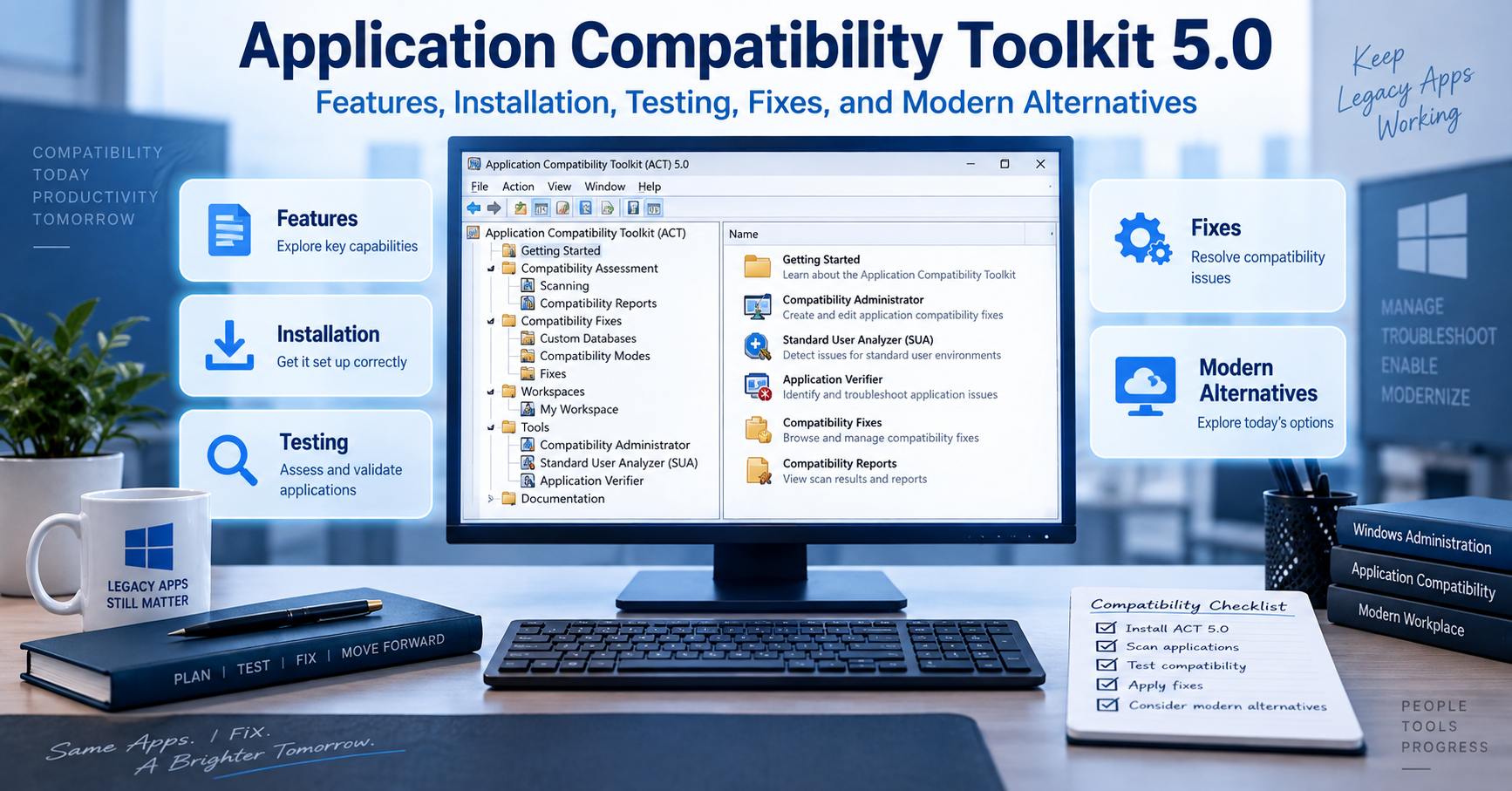
When I look at Application Compatibility Toolkit 5.0, I see more than an old Microsoft utility. It represents an important stage in the evolution of Windows application compatibility management, particularly during the transition from Windows XP to Windows Vista. Microsoft designed ACT 5.0 to help organizations identify applications, assess compatibility risks, test software against operating-system changes, and apply targeted mitigations when applications could not immediately be rewritten. Today, however, anyone researching ACT 5.0 needs to understand an equally important fact: it belongs to a legacy generation of Microsoft’s compatibility tooling and should not be treated as the standard solution for a modern Windows deployment.
My aim in this guide is therefore twofold. I will explain what Application Compatibility Toolkit 5.0 was designed to do and how its major tools worked, while also separating historically valid procedures from sensible current practice. That distinction matters because old tutorials can still describe technically correct ACT workflows while linking to retired downloads, obsolete prerequisites, or unsupported Windows versions. Microsoft’s current documentation explicitly says that the ACT versions covered by its older documentation are no longer supported, and Configuration Manager documentation records that the final ACT generation shipped with the Windows 10 version 1511 ADK.
Key Takeaways About Application Compatibility Toolkit 5.0
The most useful way I can summarize ACT 5.0 is as an enterprise compatibility assessment and remediation framework created for a very different Windows deployment era. It was not simply a button that made old software run. It combined inventory, compatibility evaluation, centralized reporting, application testing, and mitigation technologies such as compatibility fixes, commonly called shims. Microsoft also positioned it as a way to reduce the time organizations spent discovering application problems during a Windows Vista migration.
The practical lessons are straightforward:
- ACT 5.0 was primarily associated with application compatibility planning for Windows Vista-era environments.
- Compatibility Administrator could apply and test predefined compatibility fixes against problematic applications.
- Standard User Analyzer focused on problems involving User Account Control and standard-user permissions.
- Compatibility databases could store fixes, application matching information, compatibility modes, and AppHelp messages.
- ACT workflows could support broader application inventory and compatibility assessment across an organization.
- Microsoft no longer supports the ACT generations described in its legacy documentation.
- I would not download ACT 5.0 from random third-party archives for use on a current production computer.
- For present-day troubleshooting, current Microsoft deployment tools, supported Windows diagnostics, vendor updates, and application remediation should take priority.
What Is Application Compatibility Toolkit 5.0?
Application Compatibility Toolkit 5.0, commonly abbreviated as ACT 5.0, was a Microsoft toolkit for identifying, evaluating, and mitigating application compatibility problems. Microsoft released it during the Windows Vista deployment period, when organizations faced a major challenge: thousands of applications written for Windows XP or earlier systems did not necessarily behave correctly under Vista’s changed security model, User Account Control, Internet Explorer changes, or other operating-system differences.
Microsoft described ACT more broadly as a lifecycle-management tool for analyzing application portfolios, evaluating operating-system deployments and updates, organizing compatibility information, prioritizing remediation work, and deploying automated mitigations for known problems. That broader definition is useful because it prevents a common misunderstanding. ACT was not merely Compatibility Administrator. Compatibility Administrator was one important component inside a larger compatibility-management strategy.
ACT 5.0 also appeared in Microsoft’s security-update guidance. Microsoft explained that updates could modify files and registry settings that applications relied on, potentially producing incompatibilities. Its guidance pointed administrators toward the Update Compatibility Evaluator in ACT 5.0 for testing and validating updates against installed applications.
For readers encountering the name for the first time, I think the easiest mental model is this: imagine an organization with hundreds or thousands of Windows programs preparing for an operating-system migration. Testing every program manually on every computer would be inefficient. ACT helped the organization collect information, prioritize potentially problematic software, investigate failures, and apply certain compatibility workarounds while permanent fixes were being developed.
Why Microsoft Created Application Compatibility Toolkit 5.0
Windows Vista changed several behaviors that old applications had taken for granted. One particularly important area involved administrative permissions. Older Windows applications were often designed when users commonly worked with broad administrative privileges. They might attempt to write into protected directories, change machine-wide registry areas, install components at runtime, or perform tasks that Vista’s security model handled differently.
User Account Control made these assumptions more visible. Applications that behaved perfectly when a user was an administrator could fail when launched under standard-user permissions. Microsoft therefore needed tools that could help developers and administrators identify whether a program’s failures were caused by file permissions, registry access, privilege requirements, operating-system version checks, or another compatibility issue.
ACT also addressed the organizational side of migration. Compatibility work can become chaotic when every department maintains its own spreadsheet and nobody knows whether an application has been tested, whether another team has already found a fix, or whether a vendor has released an update. Microsoft’s ACT documentation described capabilities for analyzing application inventories, organizing systems and applications, filtering reports, managing issues and solutions, and exchanging compatibility information.
Microsoft’s 2007 announcement captured the product’s intended purpose particularly clearly.
“ACT 5.0 is a tool that helps businesses reduce the cost and time needed to resolve potential application compatibility issues.”
Microsoft
I think that sentence is still the best way to understand why ACT existed. The goal was not magical backwards compatibility. The goal was to turn compatibility from an unpredictable migration obstacle into a process that administrators could inventory, test, document, prioritize, and remediate.
Application Compatibility Toolkit 5.0 Components and Their Purposes
ACT 5.0 consisted of multiple tools and evaluators rather than one single compatibility engine. Exact components varied across ACT generations, which is another reason I recommend checking the documentation for the specific version being examined rather than assuming instructions for ACT 5.5 or 5.6 apply identically to 5.0.
Compatibility Administrator
Compatibility Administrator is probably the ACT component that remains most recognizable. Microsoft describes it as a utility containing prepackaged compatibility fixes that can be tested against applications that do not behave correctly under Windows. These fixes are often called AppFixes or shims.
A shim works between an application and Windows to alter a narrowly defined behavior. Instead of modifying the application’s source code, Windows can intercept a relevant operation and present behavior that the older application expects. This can be valuable when source code is unavailable or when an immediate vendor fix is not practical.
For example, imagine a hypothetical accounting application that refuses to start because it performs an outdated Windows version check. A compatibility fix might allow the program to receive information that satisfies that check without modifying the executable. That is a simplification, but it illustrates why shims were valuable during operating-system migrations.
Microsoft’s Compatibility Administrator documentation also explains that compatibility databases can store known fixes, modes, AppHelp messages, and the matching information Windows uses to associate a rule with the correct application. Later ACT documentation notes separate 32-bit and 64-bit Compatibility Administrator tools and states that the appropriate architecture should be used when creating databases for corresponding applications.
Standard User Analyzer
Standard User Analyzer, or SUA, was designed to identify compatibility problems related to User Account Control. Microsoft’s documentation says SUA can monitor application API activity and detect UAC-related compatibility problems. It can test a program under administrator or standard-user conditions, allowing an administrator to see how privileges affect behavior.
SUA could expose attempts to write to protected file locations or registry areas. Microsoft’s documentation describes interface tabs dedicated to file-system and registry activity, making it easier to recognize situations where an old application assumes permissions it should not require.
Consider a hypothetical inventory application that saves configuration data directly beneath a protected installation directory. When an administrator runs it, everything appears normal. A standard employee launches it and receives an access-denied error. SUA could help reveal that the program is attempting a protected write, giving the administrator concrete evidence to guide remediation.
Standard User Analyzer Wizard
Microsoft also documented an SUA Wizard intended to simplify UAC compatibility testing. The wizard offered a guided process but less detailed analysis than the complete Standard User Analyzer interface. Microsoft’s archived documentation says the wizard could launch an application, let the tester exercise relevant functionality, suggest potential remedies, apply them, and then allow the application to be tested again.
That distinction is useful for understanding Microsoft’s design philosophy. The full SUA tool supported deeper diagnosis, while the wizard attempted to make common compatibility testing accessible through a more structured workflow.
Update Compatibility Evaluator
The Update Compatibility Evaluator addressed a different problem: determining whether operating-system and security updates could interfere with installed applications. Microsoft repeatedly referenced this component in its security bulletins, explaining that updates sometimes affected files or registry settings required by applications.
In practical terms, this mattered for organizations that could not simply deploy an update and hope every business-critical program survived. Compatibility evaluation helped administrators identify applications touched by relevant system changes and concentrate testing where risks were greatest.
Application Inventory and Centralized Compatibility Information
ACT was also intended to help organizations understand what software actually existed across their environment. Microsoft describes ACT capabilities for analyzing portfolios of applications, websites, and computers, organizing those assets, prioritizing compatibility work through reporting, and managing issues and solutions centrally.
This inventory element often receives less attention than shims, but I consider it one of the most important ideas behind the toolkit. Compatibility management becomes much easier when administrators first know which applications matter, who uses them, whether vendors still support them, and how critical they are to business operations.
Application Compatibility Toolkit 5.0 Feature Comparison
The following table separates several key ACT-related capabilities so that readers do not confuse tools intended for different stages of compatibility work.
| Tool or Capability | Main Purpose | Typical Problem Addressed | Practical Output |
|---|---|---|---|
| Compatibility Administrator | Test and create application compatibility fixes | Legacy application behaves incorrectly on newer Windows | Compatibility fix or custom database |
| Standard User Analyzer | Analyze UAC and privilege-related problems | Application fails for standard users | Diagnostic information and possible mitigations |
| SUA Wizard | Guided UAC testing | Administrator needs simpler compatibility analysis | Suggested remedies and retesting workflow |
| Update Compatibility Evaluator | Assess update-related compatibility impact | Windows update may affect installed software | Data supporting update testing and prioritization |
| Inventory and reporting functions | Organize application compatibility work | Large environment contains many unknown or untested applications | Centralized compatibility information |
| Compatibility database | Store fixes and matching criteria | A known application needs a repeatable workaround | .sdb compatibility database |
The key takeaway from this comparison is that ACT 5.0 addressed several layers of the same problem. An enterprise could discover applications, evaluate migration risks, investigate individual failures, and then deploy compatibility mitigations. That is much broader than simply setting an executable to “Windows XP compatibility mode.”
How Compatibility Administrator and Shims Work
The shim architecture is central to understanding Application Compatibility Toolkit 5.0. A shim does not normally rewrite the affected application’s original source code. Instead, Windows uses compatibility infrastructure to alter particular interactions between the application and the operating system.
Compatibility Administrator reads compatibility database information and exposes available fixes. Microsoft’s support documentation says the utility reads the Windows application compatibility database to produce its list of available fixes. Administrators can then select a fix, launch the target executable, and assess whether the mitigation solves the problem.
A custom database can associate a fix with application-matching criteria. Matching is important because a generic rule applied to the wrong executable or version could create unintended behavior. Compatibility work therefore requires careful identification of the program and thorough testing.
I would treat that historical example cautiously today. Removing an elevation prompt does not give a program privileges it legitimately requires. It changes how Windows launches it. If software genuinely needs elevated access because of its architecture, forcing it to run without elevation can simply cause another failure. Worse, treating compatibility settings as security bypasses can lead administrators into poor security practices.
When a Compatibility Fix Makes Sense
A compatibility shim can make sense when the application is important, rewriting it immediately is impossible, the incompatibility is narrow and well understood, and the mitigation can be tested comprehensively.
A useful hypothetical example would be an internal engineering application whose vendor disappeared years ago. The program performs one outdated compatibility check but otherwise works correctly. If a narrowly targeted shim addresses that check and the company has validated every critical workflow, the compatibility database might provide breathing room while the organization develops a replacement.
The opposite scenario would be a program that requires obsolete drivers, unsupported cryptographic components, insecure browser technology, unrestricted administrative access, and deprecated dependencies. I would not view a pile of compatibility shims as an appropriate long-term solution. At that point the problem is architectural, not merely cosmetic.
ACT 5.0 Versus Ordinary Windows Compatibility Mode
It is easy to confuse Application Compatibility Toolkit with the Compatibility tab available in Windows executable properties. They are related conceptually, but they are not identical.
The ordinary Compatibility interface is designed for relatively simple per-application adjustments, such as running under certain compatibility settings. ACT’s Compatibility Administrator provided substantially more control over compatibility fixes and custom compatibility databases, making it more suitable to enterprise testing and controlled deployment.
I see the difference as one of scale and precision. A desktop compatibility setting helps an individual troubleshoot one program. ACT was designed to support a structured process in which compatibility information could be analyzed, tested, packaged, documented, and potentially deployed across many systems.
Historical Application Compatibility Toolkit 5.0 Requirements
Requirements for legacy software can be confusing because Microsoft documentation written during the product’s active life reflects the operating systems and dependencies of that period. Microsoft’s Compatibility Administrator support article historically instructed users to download ACT 5.0 and stated that Microsoft .NET Framework 1.1 or later was required for installation.
I would not interpret that historical prerequisite as a recommendation to install old .NET components on a current machine. It simply documents the environment in which Microsoft’s old installation instructions were written. Microsoft’s current ACT documentation makes the more important modern point: these ACT versions are no longer supported.
Historical Requirements Versus Current Reality
This table is important because many pages on the web mix old ACT instructions with modern Windows advice.
| Topic | ACT 5.0-Era Position | Practical Position Today |
|---|---|---|
| Primary migration target | Windows Vista-era application compatibility | ACT 5.0 is a legacy product |
| Official ACT 5.0 download | Historically offered by Microsoft | Old download references may be retired |
| .NET prerequisite | Microsoft support documentation referenced .NET Framework 1.1 or later | Do not add obsolete dependencies solely to reproduce an old setup without a controlled reason |
| Compatibility Administrator | Core ACT utility | Later versions existed in subsequent ACT/ADK generations |
| Operating environment | XP/Vista-era estates | Use supported modern tools for current production systems |
| Production recommendation | Appropriate in its supported era | Prefer supported Windows and application remediation methods |
| Third-party mirrors | Not needed when Microsoft distributed ACT directly | Avoid untrusted executable archives |
The important lesson is that historical accuracy and modern operational advice are not the same thing. A 2007 installation procedure can be accurately documented while still being a poor recommendation for an internet-connected Windows 11 workstation in 2026.
How Application Compatibility Toolkit 5.0 Was Installed
Microsoft’s historical support documentation described installation using an Application Compatibility Toolkit.msi package obtained from Microsoft’s site. The user downloaded the MSI, launched the installer, and followed the setup wizard. The same page noted the .NET requirement mentioned above.
Because ACT 5.0 is obsolete, I would not advise readers to search indiscriminately for the old MSI on software-download websites. Executables and installers from unverified mirrors can be modified, bundled, or misrepresented. If your purpose is historical research, software preservation, or a controlled legacy laboratory, verify provenance and file integrity before execution.
Step 1: Decide Whether You Actually Need ACT 5.0
Before installing anything, determine why version 5.0 specifically is required. If the goal is documenting a Windows Vista migration, reproducing an old enterprise environment, or examining an ACT-generated compatibility database, a legacy test environment may be justified.
If the goal is simply to make a current Windows program work, ACT 5.0 is unlikely to be the appropriate starting point. Use supported vendor versions, current Windows troubleshooting tools, virtualization where licensing permits, or modern deployment guidance instead.
Step 2: Use an Isolated Test Environment for Legacy Research
For archival or historical compatibility work, I recommend a disposable virtual machine that matches the software’s original operating context as closely as practicable. Keep the environment separated from sensitive credentials, production systems, and important data.
This approach offers two benefits. First, it reduces the security consequences of installing unsupported components. Second, it gives more historically meaningful results because compatibility tooling behaves in an environment closer to the platform for which it was created.
Step 3: Verify the Installer’s Origin
Do not assume a file named Application Compatibility Toolkit.msi is authentic simply because the filename looks correct. If your organization maintains archived Microsoft installation media, compare hashes, signatures, catalog information, and internal software records where available.
I would avoid treating an unsigned file from an unknown download site as trustworthy just because ACT 5.0 itself was once free software. Free distribution does not make every surviving copy legitimate.
Step 4: Install Only the Required Legacy Dependencies
If a historically accurate laboratory requires an old dependency, install it only within that test environment and only after understanding its support status. Avoid weakening a modern production workstation merely to satisfy an installer from another Windows generation.
Step 5: Launch Compatibility Administrator for Targeted Testing
Microsoft’s old support documentation directed users to launch Compatibility Administrator from the Application Compatibility Toolkit program group. From there, administrators could inspect existing fixes or create a custom application fix.
Step 6: Test Before Creating a Deployment Database
Select the target executable, identify the suspected incompatibility, apply candidate fixes, and exercise all meaningful program functions. A program opening successfully is not enough evidence that a shim is safe.
For example, if an application can launch after a compatibility fix but fails while saving reports, printing, accessing network paths, importing files, or processing data, the mitigation is incomplete. Testing must cover workflows that matter to users.
Step 7: Save and Deploy the Compatibility Database Only After Validation
Compatibility Administrator can create custom databases for tested fixes. Later Microsoft documentation describes these databases as storing known compatibility fixes, modes, AppHelp messages, and application-matching information.
Deployment should therefore be treated as a controlled configuration change. Document what application the database targets, which executable versions were tested, which fixes were applied, how rollback works, and who owns the application.
Using Standard User Analyzer to Diagnose UAC Problems
Standard User Analyzer becomes useful when an application behaves differently depending on whether the user has administrator rights. Microsoft’s documentation says SUA monitors API calls to detect User Account Control compatibility issues and can run the target application under different privilege conditions.
Microsoft’s interface documentation highlights file-system and registry information. A file tab may reveal a program attempting to write where a standard user lacks permission, while the registry tab may expose similar access attempts against protected registry keys.
Suppose a hypothetical payroll utility launches successfully as administrator but crashes when a payroll clerk starts it normally. Instead of granting every payroll clerk permanent administrator rights, I would first diagnose what operation is failing. Perhaps the program writes a temporary file into its installation directory. Identifying that specific behavior creates several safer remediation options than simply elevating the entire application.
Microsoft also documented the ability of later SUA tooling to apply proposed mitigations and export them as a Windows Installer package for deployment.
That workflow reflects a principle I still consider valid: diagnose the precise compatibility failure before changing security policy.
How ACT Helped With Windows Updates
Operating-system migration was not the only compatibility challenge Microsoft had in mind. Microsoft security bulletins specifically promoted ACT 5.0’s Update Compatibility Evaluator because security updates could modify files or registry settings that installed applications depended on.
This mattered in large environments where administrators had to balance two risks: delaying important patches versus disrupting critical business applications. Compatibility evaluation did not eliminate that tradeoff, but it gave teams more information for prioritizing tests.
A hypothetical manufacturer might have 800 desktop applications but only 25 that interact deeply with Windows components changed by a particular update. If compatibility data helps narrow intensive regression testing to those higher-risk applications, the organization can use its testing resources much more effectively.
Microsoft summarized the idea this way:
“Updates often write to the same files and registry settings required for your applications to run.”
Microsoft Security Bulletin guidance
That statement explains why compatibility assessment belongs in update management. Software can fail even when the update itself is functioning exactly as intended because the application’s assumptions about the operating environment have changed.
Common Application Compatibility Toolkit 5.0 Mistakes
One mistake I frequently see in discussions of legacy compatibility tools is assuming that a successful launch means the compatibility problem is solved. An application can open while still failing during printing, database access, file export, licensing, network authentication, plug-in loading, or shutdown.
Testing should therefore follow business workflows rather than stopping at the application’s main window. If ten people depend on a program for monthly reporting, include the report-generation workflow in validation.
Another mistake is using administrator privileges as the universal repair method. If software works only when elevated, the correct question is why. Giving an application administrative rights can hide file or registry design problems while increasing the consequences of a vulnerability.
A third mistake is stacking many shims together without understanding which one solves the actual incompatibility. More compatibility settings do not necessarily create more compatibility. They can change behavior in ways that are difficult to diagnose later.
A fourth mistake is treating custom compatibility databases as permanent application modernization. A shim can be an excellent bridge, but a bridge is not the destination. When source code, a vendor-supported release, or a replacement application becomes available, organizations should reassess whether the workaround is still necessary.
Finally, one of the most serious modern mistakes is downloading ACT 5.0 from an arbitrary third-party website because an old Microsoft URL no longer works. Unsupported software already carries operational risk. Combining it with an untrusted binary source compounds that risk.
Application Compatibility Toolkit 5.0 Security Considerations
Compatibility technologies can change how applications interact with Windows, so administrators should document and control them carefully. A compatibility fix should address a specific known problem rather than weakening security settings broadly.
This principle becomes especially important around User Account Control. An application asking for elevation might have a legitimate administrative function, or it might be badly designed. Removing an elevation prompt without understanding the application’s behavior does not automatically make the application safer or more compatible.
Microsoft’s own Windows application documentation provides an important caution around compatibility-related configuration. In one application-configuration scenario, Microsoft advises that compatibility configuration should be used by administrators as a temporary solution while developers work toward a permanent compatible implementation.
I believe that principle generalizes well beyond that specific Microsoft page. Compatibility interventions should normally be narrowly targeted, documented, tested, reversible, and periodically reviewed.
Is Application Compatibility Toolkit 5.0 Still Supported?
No. Microsoft’s documentation explicitly states that the ACT versions covered in its legacy application-quality documentation are no longer supported. The documentation points to the Windows 10 Assessment and Deployment Kit as containing the last supported ACT generation from that lineage.
Configuration Manager documentation gives additional historical context. Microsoft states that the final ACT version was shipped in the Windows 10 version 1511 ADK and that no further ACT updates were planned. That lack of continued development also contributed to discontinuation of Configuration Manager’s Upgrade Assessment Tool, which depended on ACT.
Microsoft puts the status plainly in its ACT documentation:
“The Application Compatibility Toolkit versions covered in this article are no longer supported.”
Microsoft Learn
In my view, that should shape every modern ACT 5.0 decision. Study it, reproduce it in a lab when historical compatibility work requires it, or maintain it inside a controlled legacy environment if business circumstances leave no immediate alternative. Do not mistake historical availability for present-day support.
Modern Alternatives to Application Compatibility Toolkit 5.0
There is no perfect one-for-one modern replacement for every ACT 5.0 capability because Windows deployment practices and Microsoft’s tooling strategy evolved significantly after ACT.
For a modern application that fails on current Windows, I would begin with the software publisher. A supported release built for the target operating system is usually preferable to forcing an obsolete release through compatibility layers.
For diagnosing permissions, file activity, registry access, startup failures, or process behavior, administrators can use supported Windows diagnostic technologies and Microsoft’s current troubleshooting ecosystem. For migration planning, modern application inventory, endpoint management, deployment analytics, and vendor compatibility information may provide better data than resurrecting ACT 5.0.
Virtualization is another option when an old application genuinely requires an older operating environment and licensing permits it. Running the application inside a tightly controlled virtual machine can sometimes isolate legacy dependencies more cleanly than modifying a modern endpoint extensively. However, virtualization does not magically make an unsupported operating system secure, so network isolation and lifecycle planning still matter.
When the application itself can be modified, source-level remediation remains the strongest long-term approach. Correct file paths, proper permissions, supported APIs, modern installers, and updated dependencies eliminate the underlying incompatibility instead of disguising it.
A Practical Compatibility Decision Framework
When I assess a legacy Windows application, I would not begin with the question, “Which shim should I use?” I would begin with five broader questions: Is the application still supported? Is a current version available? What exactly fails? Does the failure involve a security-sensitive behavior? How long must the application remain operational?
If the application depends on multiple unsupported technologies, the better strategy is often containment plus replacement planning. Every additional legacy dependency increases testing cost and operational uncertainty.
This approach also prevents what I call “compatibility debt.” Each temporary workaround creates something that administrators must remember during the next operating-system upgrade, security change, hardware refresh, or application update. A temporary fix left undocumented can eventually become an invisible production dependency.
Troubleshooting ACT and Compatibility Database Problems
When a compatibility database appears ineffective, verify that it targets the correct executable version. Matching criteria exist precisely because Windows must know which application should receive the selected fix.
Architecture can also matter. Microsoft’s later Compatibility Administrator documentation states that ACT provides 32-bit and 64-bit versions and instructs administrators to use the 32-bit tool for 32-bit applications and the 64-bit tool for 64-bit applications when creating custom databases.
If a mitigation worked during an initial test but not after deployment, check whether the intended database is actually installed, whether the target executable changed through an application update, and whether another compatibility configuration is interacting with it.
For SUA-style diagnostics, ensure the test exercises the failing action. Launching an application and immediately closing it provides little diagnostic value if the actual problem occurs only when saving a configuration file or opening a particular module.
Finally, compare behavior between administrator and standard-user contexts carefully. A difference between the two can point toward privilege or access issues, but the correct response should be based on the failed operation rather than automatically granting elevation.
Expert Recommendations for Working With Legacy Compatibility Tools
My first recommendation is to preserve context. Record the operating-system version, application version, architecture, failing action, error message, proposed mitigation, test steps, and result. Compatibility troubleshooting becomes far more efficient when evidence replaces guesswork.
Second, I recommend separating diagnosis from remediation. First determine why the application fails. Then decide whether to update it, reconfigure it, shim it, virtualize it, replace it, or retire it.
Third, treat security and compatibility as linked concerns rather than competing priorities. A workaround that makes an application run by permanently weakening endpoint security may create a larger problem than the original compatibility failure.
Fourth, keep rollback simple. A custom database, configuration change, or package should be removable if testing reveals unexpected behavior.
Fifth, test with representative users and workflows. Applications often behave differently depending on permissions, locale, data location, peripherals, plug-ins, network access, and user profiles.
Most importantly, establish an exit plan for unsupported applications. Legacy tooling can keep critical systems operational during migration, but it should not become the reason an organization postpones modernization indefinitely.
Why ACT 5.0 Still Matters Historically
Although ACT 5.0 is obsolete as a current deployment product, its underlying ideas remain relevant. Inventory before migration, test high-risk applications, diagnose exact incompatibilities, apply narrow mitigations, centralize compatibility knowledge, and replace temporary workarounds with permanent solutions whenever possible.
I also see ACT 5.0 as an example of how Windows compatibility became an enterprise management discipline. Microsoft was not merely offering users a few checkbox options. ACT connected compatibility assessment with application lifecycle management and large-scale operating-system deployment.
That historical perspective is useful for administrators who inherit old .sdb databases, Windows Vista-era deployment documentation, or applications that were originally kept alive with shims. Understanding why those artifacts exist makes it easier to decide whether to preserve, migrate, or retire them.
Conclusion
I view Application Compatibility Toolkit 5.0 as an important legacy Microsoft platform for understanding and managing the application problems that surfaced during major Windows transitions, particularly around the Windows Vista era. Its combination of inventory, compatibility analysis, UAC diagnostics, update assessment, Compatibility Administrator, and shim databases gave IT teams a structured alternative to blindly testing every application or granting unnecessary administrative privileges.
The practical lesson today is different from the one administrators would have taken from ACT in 2007. ACT 5.0 is no longer a supported Microsoft solution, and its original installation guidance should be treated as historical documentation rather than a modern deployment recommendation. Microsoft’s later documentation confirms that the ACT line itself eventually stopped receiving updates.
For modern systems, I would first seek a supported application release, diagnose the underlying incompatibility, and prefer permanent remediation over accumulating compatibility workarounds. When ACT 5.0 must be studied or reproduced for archival or legacy-system purposes, use a controlled environment, trusted media, documented test cases, and a clear migration plan. That preserves the value of the toolkit without confusing legacy compatibility engineering with present-day Windows support.
READ: vrgamegirl19/comfyui-vrgamedevgirl: Features, Setup, Installation, and Safety Guide
Frequently Asked Questions
What Is Application Compatibility Toolkit 5.0 Used For?
Application Compatibility Toolkit 5.0 was used to evaluate and mitigate application compatibility problems, particularly during Windows Vista deployment. Microsoft designed ACT to help organizations inventory applications, evaluate compatibility, investigate failures, manage compatibility information, and apply selected mitigations. Compatibility Administrator handled application fixes and compatibility databases, while other components addressed areas such as User Account Control and Windows update impact. Microsoft now categorizes the ACT versions covered by its legacy documentation as unsupported.
Can I Still Download Application Compatibility Toolkit 5.0?
The original Microsoft download references for ACT 5.0 are historical, and old Microsoft support material still describes how the package was downloaded during its supported era. However, Microsoft now states that the older ACT versions in its documentation are unsupported. I would not recommend downloading ACT 5.0 from an unknown third-party archive simply because the original distribution link is unavailable. For legitimate legacy research, use trusted organizational archives or properly verified historical media.
Does Application Compatibility Toolkit 5.0 Work on Windows 10 or Windows 11?
Application Compatibility Toolkit 5.0 was created for a much earlier Windows generation and should not be treated as a supported Windows 10 or Windows 11 solution. Microsoft later incorporated newer application compatibility tooling into Windows ADK releases, while its documentation records that the ACT product line eventually stopped receiving updates. For current Windows compatibility work, I recommend using supported tools and current vendor guidance rather than attempting to build a modern deployment process around ACT 5.0.
What Is Compatibility Administrator?
Compatibility Administrator is a Microsoft compatibility utility that lets administrators examine and apply application compatibility fixes, often called AppFixes or shims. It can associate fixes with specific applications and create custom compatibility databases containing fixes and matching information. Microsoft documentation describes it as a tool with prepackaged fixes designed to help programs that do not run correctly under Windows.
What Is a Shim in Application Compatibility Toolkit 5.0?
A shim is a compatibility intervention that changes how an application experiences a particular Windows behavior without requiring the application’s original source code to be rewritten immediately. Administrators can use Compatibility Administrator to select compatible fixes and associate them with an application. I regard shims primarily as targeted remediation tools rather than universal solutions. They should be carefully tested, documented, and replaced by permanent application fixes whenever practical.
What Is Standard User Analyzer?
Standard User Analyzer is a Microsoft tool for identifying compatibility problems related to User Account Control. It can monitor application activity and reveal issues involving protected files, registry locations, or privilege assumptions. Microsoft’s documentation explains that testers can run applications under different permission conditions and review the resulting compatibility information. This helps administrators investigate why an application behaves differently for a standard user than for an administrator.
Is ACT 5.0 the Same as Windows Compatibility Mode?
No. Windows compatibility mode provides relatively simple compatibility settings for individual applications, while Application Compatibility Toolkit 5.0 was an enterprise-oriented collection of assessment and remediation tools. ACT supported compatibility databases, application fixes, UAC analysis, inventory and reporting functions, and compatibility evaluation. Compatibility Administrator therefore offered substantially more targeted control than merely selecting an older Windows version from an executable’s Compatibility tab.
Should I Use ACT 5.0 to Fix a Legacy Business Application Today?
I would use Application Compatibility Toolkit 5.0 today only when a specific historical or controlled legacy requirement justifies it. For a normal production system, the first choices should be a supported application update, vendor remediation, supported diagnostic tools, or a planned replacement. If an irreplaceable application requires an old environment, a controlled legacy laboratory or appropriately isolated virtualized solution may be more manageable than adding unsupported components to current endpoints.
Sources
Microsoft’s archived and current documentation establishes that ACT was designed as a compatibility lifecycle-management toolkit and that the older ACT versions are no longer supported. The same documentation describes Compatibility Administrator, Standard User Analyzer, compatibility databases, UAC analysis, and the eventual end of ACT development.
Microsoft’s 2007 Windows Vista deployment announcement provides historical context for ACT 5.0 and explains that Microsoft intended the toolkit to reduce the time and cost associated with application compatibility assessment and remediation during Vista migrations.
Microsoft security bulletins document the Update Compatibility Evaluator and explain why operating-system updates could create application compatibility concerns involving changed files and registry settings.
Microsoft’s previous-version SUA documentation explains UAC testing, the SUA Wizard, mitigation workflows, and the file and registry information available during application analysis.
The structure and editorial requirements for this guide were supplied with the user’s content brief.
Disclaimer
This article is for educational, historical, and technical-information purposes. Application Compatibility Toolkit 5.0 is legacy software, and Microsoft’s documentation indicates that the relevant ACT generations are no longer supported. I do not recommend installing unsupported Microsoft components, obsolete dependencies, or compatibility databases from unverified sources on production systems. Test legacy software in an appropriately isolated environment, maintain backups, verify installer provenance, follow your organization’s security requirements, and use currently supported Microsoft or software-vendor guidance whenever available.
When I see the search phrase allintext:login filetype:log, I treat it primarily as a cybersecurity exposure indicator rather than as an ordinary search query. The phrase combines search filters traditionally associated with what security practitioners often call Google dorking, or using advanced search syntax to narrow publicly indexed information.
The potentially sensitive part is not the search syntax itself. The problem is what poorly configured servers may unintentionally expose. Application logs can contain usernames, email addresses, internal hostnames, IP addresses, database errors, file paths, session information, software versions, authentication events, and, in badly designed systems, even secrets that should never have been logged.
For that reason, I will explain this keyword from a defensive perspective. I will not provide instructions for harvesting passwords, session tokens, or other credentials from third-party systems. Searching for information accidentally exposed by organizations you do not own or have permission to assess can create serious ethical and legal problems.
Google itself documents search operators as tools for refining results, including filetype:. Its current Search Central documentation says the operator can restrict results according to a file type or file extension, and Google can index the contents of many text-based resources.
The practical security lesson is straightforward: if a .log file is publicly reachable without authentication, a crawler may potentially discover it. If that file contains sensitive information, the problem is not that a search engine found it. The underlying problem is that the sensitive file was exposed to the public internet in the first place.
Key Takeaways About allintext:login filetype:log
The most important points I would keep in mind are:
filetype:is an officially documented Google Search operator for narrowing results by file type or extension.allintext:is commonly described as restricting search terms to page text, but it is not included in Google’s current official operator table, so behavior should not be assumed to be guaranteed or permanent.- The word
loginin the query does not automatically mean a result contains usernames or passwords. It may simply contain an authentication-related event message. - A
.logextension does not automatically mean a file is sensitive. - Log files can nevertheless contain highly sensitive information when logging is poorly designed.
- OWASP says passwords, access tokens, encryption keys, database connection strings, and similar secrets generally should not be recorded directly in application logs.
- Publicly accessible logs can reveal useful reconnaissance information even when they contain no passwords.
- Robots.txt is not an adequate security control for confidential files.
- Password protection, access controls, removal of the file, and correct server configuration are stronger protections.
- Google’s Search Console Removals tool can temporarily hide URLs from search, but permanent remediation still requires changing or removing the underlying content.
- If exposed credentials are found in your own logs, removing the file is not enough. The affected secrets should also be rotated or revoked.
- Organizations should centralize logging, restrict access, redact sensitive fields, and monitor log-storage permissions.
- Defensive search audits should be restricted to domains and systems you own or have explicit authorization to test.
From my perspective, the phrase is most useful as a reminder that search-engine indexing can expose mistakes that already exist in server configuration.
What Does allintext:login filetype:log Mean?
The query can be understood by separating it into its components.
What filetype:log Does
Google officially supports the filetype: operator.
Google Search Central explains that it can be used to:
“limit results to a specific file type or file extension.”
Google Search Central
Google also says it can index the contents of most text-based files and that file type can be determined through the HTTP Content-Type header, file extension, or parser behavior. Its current documentation explicitly notes that plain text can be indexed under various extensions.
That means a server exposing a readable text resource ending in .log can potentially make that content discoverable.
I would not assume every .log resource will appear in search. Crawling and indexing depend on many factors, including discoverability, HTTP responses, crawler access, content type, indexing policy, duplicate handling, and Google’s own indexing systems.
What allintext: Traditionally Means
allintext: is commonly described as asking Google to require specified terms to occur within the text of a result.
Google’s current official Search Help documentation does not list allintext: among its main supported operators. A Google Search Community answer has historically described it as restricting results so specified terms occur in the body text.
That difference is important.
I would describe allintext: as a legacy or commonly referenced advanced-search operator, not as something whose exact behavior Google currently guarantees in its primary operator documentation.
What login Means in the Query
The word login is simply a text term.
A log containing that term might show something harmless such as:
Login page loaded successfullyIt could record an authentication failure:
Login failed for user ID 1842Or it could contain much more sensitive information if an application was designed badly.
The presence of the word login therefore tells us very little by itself.
Why Security Researchers Pay Attention to Indexed Log Files
Logs exist because systems need a historical record of activity.
They help developers troubleshoot problems, detect attacks, investigate incidents, monitor reliability, and understand application behavior.
NIST describes sound log management as an important part of information security and recommends structured processes for generating, transmitting, storing, analyzing, and disposing of logs.
That legitimate operational value also makes logs attractive to attackers.
A production log might reveal:
- Internal application routes
- Administrative endpoints
- Hostnames
- User identifiers
- Email addresses
- IP addresses
- Software components
- Error stack traces
- API locations
- Database names
- Cloud infrastructure information
- Session identifiers
- Security events
- Failed login patterns
None of these necessarily represents an immediately exploitable secret, but several can make subsequent reconnaissance substantially easier.
What Should Never Be Stored Directly in Logs?
This is one of the most important defensive lessons associated with the keyword.
OWASP provides explicit guidance about sensitive information.
Its Logging Cheat Sheet says:
“The following should usually not be recorded directly in the logs”
and includes passwords, access tokens, encryption keys, database connection strings, sensitive personal information, session identifiers, and payment-related data among the examples.
That guidance matters even when logs are stored internally.
Access controls fail.
Backups leak.
Cloud storage is misconfigured.
Employees accidentally attach logs to support tickets.
Debug files are copied into public directories.
A server migration can expose an old archive.
Security therefore starts by avoiding unnecessary sensitive logging, not merely by hiding a log directory later.
Sensitive Log Data and the Risk It Creates
The table below shows why different types of leaked log information require different responses.
| Log Content | Typical Security Concern | Defensive Response |
|---|---|---|
| Authentication password | Immediate account compromise | Remove exposure, reset password, investigate access |
| API key | Unauthorized API usage | Revoke and issue new key |
| Access token | Account or service impersonation | Revoke token and invalidate sessions |
| Session identifier | Session hijacking risk | Expire sessions and rotate session secrets if needed |
| Database connection string | Database access risk | Rotate credentials and restrict network access |
| Private key | Severe cryptographic compromise | Revoke or replace key and dependent certificates |
| Email address | Privacy and phishing exposure | Remove unnecessary data and assess notification duties |
| IP address | Privacy or infrastructure reconnaissance | Limit public exposure and evaluate sensitivity |
| Internal hostname | Reconnaissance information | Review architecture exposure |
| Stack trace | Reveals software internals | Disable verbose production errors |
| Software version | May aid vulnerability targeting | Patch systems and minimize unnecessary disclosure |
| User ID | May aid enumeration or profiling | Mask or pseudonymize where appropriate |
The strongest point in this table is that deletion alone is not always remediation.
If an API key has been public for several days, hiding the log does not make the old key secret again.
A secret that may have been exposed should generally be treated as compromised.
Is allintext:login filetype:log a “Google Dork”?
The term Google dork is commonly used for combinations of search operators that identify very specific categories of indexed content.
The technique itself is not automatically malicious.
Search operators have many legitimate uses:
- SEO troubleshooting
- Finding documentation
- Detecting duplicate content
- Discovering exposed files on your own website
- Auditing accidental indexing
- Investigating incident exposure
- Locating outdated documents
- Checking whether removed content remains indexed
Google itself publishes documentation about using search operators for debugging websites. It notes that search operators can inspect aspects of indexed pages, although Search Console is more reliable for debugging because operators are subject to indexing and retrieval limits.
The ethical line depends heavily on authorization and intent.
Searching your own organization’s public domain for accidentally indexed files is defensive.
Searching unrelated organizations specifically to locate credentials and then using them would be something very different.
Safe Defensive Use of Search Operators
When I perform an exposure audit, I recommend limiting the scope to a domain the organization owns.
A safe, bounded pattern looks conceptually like:
site:example.com filetype:logHere, example.com represents a domain you control or are explicitly authorized to assess.
That search can help determine whether obvious log resources from your own site have entered a public search index.
Google itself recommends using the site: operator for periodic checks of sensitive information on domains you own. Its Search Console guidance provides an example of searching a specific owned domain for potentially private identifiers.
I would still use Google Search Console and server-side asset inventories as the primary methods. Search results are incomplete by design and cannot prove that no public exposure exists.
Why Search Results Are Not a Complete Security Scanner
A common misconception is that if a Google query returns nothing, the website must be safe.
That conclusion is incorrect.
Search engines do not index every publicly reachable resource.
A log might be exposed while remaining absent from search because:
- No crawlable link points to it
- The crawler has not discovered it yet
- Indexing was declined
- The response format was unsupported
- The content was considered duplicate
- Crawl limits prevented retrieval
- Search results were filtered
- The resource was discovered by another search engine but not Google
- The file is reachable only through a predictable URL
A security assessment therefore needs direct infrastructure review.
Search indexing is one signal, not a substitute for configuration testing.
How Log Files Accidentally Become Public
In my analysis, most public log exposures result from deployment mistakes rather than deliberate publication.
Logs Written Under the Web Root
Consider a hypothetical web server:
/var/www/site/public/If an application stores logs inside that directory and the web server serves unknown file types, a browser might be able to retrieve them.
The safer architecture is to keep application logs outside publicly served directories and allow access only through appropriate logging infrastructure.
Debug Files Left After Troubleshooting
A developer might temporarily enable verbose debugging and generate a file for troubleshooting.
The issue becomes permanent when the debug setting or file is forgotten.
Incorrect Cloud Storage Permissions
Logs exported to object storage can become publicly readable when bucket or object permissions are wrong.
Backup Archives
A server operator may correctly secure app.log but accidentally expose:
app.log.old
app-log-backup.zip
logs.tar.gz
The original file is protected while the backup is not.
Container and CI/CD Artifacts
Build pipelines can archive logs for debugging.
If those artifacts contain credentials or deployment details and are later made public, the same exposure problem appears in another form.
OWASP’s CI/CD security guidance specifically warns against recording plaintext passwords, tokens, API keys, and similar secrets in logs.
Authentication Logging Without Exposing Passwords
Authentication events should normally be logged because they are valuable for detecting brute-force attacks, credential stuffing, account lockouts, and other suspicious behavior.
That does not mean passwords belong in those records.
A useful authentication event might contain:
timestamp=2026-09-08T10:24:13Z
event=authentication_failure
user_id=48291
source_ip=192.0.2.10
reason=invalid_credentials
It does not need:
password=WinterPassword123OWASP recommends logging authentication successes and failures while explicitly advising against logging authentication passwords.
That distinction is fundamental to secure observability.
Session IDs Are Also Secrets
Developers sometimes understand that passwords should not be logged but fail to apply the same thinking to session cookies.
A valid session identifier can sometimes provide account access without requiring the user’s password.
OWASP recommends avoiding raw session IDs in logs and suggests that, when correlation is necessary, a salted hash can be logged instead.
That allows security teams to correlate events associated with the same session while reducing the damage if the log itself is exposed.
How to Protect Log Files Properly
A secure logging architecture should use multiple controls.
Store Logs Outside Public Web Directories
This is one of the simplest protections.
A file that a web server cannot serve is much less likely to become indexed.
Require Authentication and Authorization
Operations dashboards and log viewers should be accessible only to authorized staff.
NIST’s guidance is direct:
“Limit access to log files.”
NIST SP 800-92
NIST additionally recommends avoiding unnecessary sensitive data and protecting archived log files.
Centralize Logs
Production systems should ideally send logs into controlled logging infrastructure or a SIEM rather than leaving readable text files scattered across public servers.
Centralization improves:
- Access control
- Retention
- Searching
- Alerting
- Integrity monitoring
- Incident response
- Backup policies
Apply Least Privilege
Developers, services, and users should receive only the log access they actually require.
Encrypt Sensitive Storage
Encryption at rest helps reduce the impact of unauthorized storage access.
Protect Log Integrity
An attacker who compromises a server may attempt to erase evidence.
Logs therefore need safeguards against unauthorized deletion and tampering.
Why robots.txt Is Not a Security Feature
One mistake I see repeatedly is placing confidential directories into robots.txt and assuming that makes them private.
It does not.
Google explicitly says robots.txt is not a mechanism for keeping a web page out of Google Search. For sensitive content, Google recommends restricting access to authenticated users or applying appropriate indexing controls.
The deeper problem is that robots.txt is publicly readable.
A sensitive location should be inaccessible to unauthorized users regardless of whether crawlers visit it.
If authentication is the security requirement, implement authentication.
noindex Is Useful, but It Is Not Access Control
Google supports the noindex directive to prevent resources from appearing in search results. It can be applied through a robots meta tag for HTML pages or through the X-Robots-Tag HTTP response header for non-HTML resources.
For example, a non-public document that must technically remain accessible might carry an appropriate indexing header.
But I would not use noindex as the primary protection for confidential logs.
A person who knows the URL may still be able to access the resource directly.
For actual secrets, authorization is the stronger control.
Google itself describes noindex as less secure than removing the information or requiring a password when discussing permanent removal of sensitive content.
What to Do If Your Log File Appears in Google
If I discovered an organization’s own production log in a public search result, I would treat it as an incident.
The appropriate response depends on the contents.
Step 1: Restrict Public Access Immediately
The file should stop being anonymously accessible.
Depending on the situation, that may mean:
- Removing it from the public server
- Moving it outside the web root
- Requiring authentication
- Changing object-storage permissions
- Returning 404 or 410
- Correcting reverse-proxy or server rules
Step 2: Preserve an Internal Copy for Investigation
Before destroying evidence, retain a protected copy if incident-response procedures require it.
The exposed public copy should be removed, while an internal evidence copy can support investigation.
Step 3: Identify What Was Exposed
Review the file for:
- Passwords
- API keys
- Tokens
- Session IDs
- Database credentials
- Personal data
- Internal infrastructure details
Step 4: Rotate Compromised Secrets
Anything secret that may have been publicly reachable should be evaluated for rotation.
Examples include:
- Passwords
- API credentials
- Session signing keys
- Database passwords
- OAuth secrets
- Cloud access keys
Step 5: Review Access Logs
Determine whether the exposed resource was downloaded and from which sources.
Do not assume that removing it from search means nobody accessed it.
Step 6: Request Search Removal
For sites you control, Google’s Search Console Removals tool can temporarily hide a URL from results.
Google warns that the block lasts only about six months and that permanent removal requires changing the underlying resource, such as deleting it, protecting it with authentication, or using appropriate indexing controls.
Step 7: Address Other Search Engines and Caches
Google removal does not remove the file from the internet or from every search provider.
The root fix must always occur at the host.
Step 8: Investigate the Deployment Process
Ask how the log entered a publicly reachable directory.
Without fixing the source process, the same problem may recur.
Defensive Incident Response Priorities
This table provides a practical order of operations.
| Priority | Action | Why It Matters |
|---|---|---|
| 1 | Restrict public access | Stops continuing exposure |
| 2 | Preserve evidence internally | Supports investigation |
| 3 | Identify exposed data | Determines severity |
| 4 | Revoke or rotate secrets | Prevents continued credential abuse |
| 5 | Expire affected sessions | Reduces session hijacking risk |
| 6 | Review access history | Helps determine whether data was retrieved |
| 7 | Notify security/privacy teams | Supports legal and regulatory response |
| 8 | Request search removal | Reduces continued discoverability |
| 9 | Correct deployment configuration | Prevents recurrence |
| 10 | Audit similar systems | Finds related exposures |
The central lesson is that search removal comes after containment.
Making the result disappear from Google is useful, but it does not reverse disclosure.
When a Public Log Becomes a Data Breach
Not every exposed log automatically meets the legal definition of a reportable data breach.
The answer depends on:
- What information was exposed
- Which jurisdictions apply
- Whether the data was actually accessed
- How many people were affected
- Whether information was encrypted
- Applicable contractual requirements
- Sector-specific regulations
A log containing generic server messages might present little privacy risk.
A log containing healthcare information, financial data, credentials, or government identifiers could create a much more serious incident.
Organizations should involve their privacy, security, and legal teams when sensitive personal information may have been exposed.
Common Misconceptions About allintext:login filetype:log
“The Query Automatically Finds Passwords”
No.
The word login can appear in ordinary application messages that contain no credentials.
The query does not inherently identify passwords.
“Every .log File Is Dangerous”
No.
Many logs contain ordinary diagnostic information.
The security risk depends on the contents and infrastructure context.
“If Google Indexed It, Google Caused the Leak”
Usually, no.
If a crawler can anonymously retrieve a sensitive file, the original security problem is the server’s public accessibility.
“Blocking Googlebot Fixes the Exposure”
No.
A human attacker does not need to follow crawler instructions.
“Deleting the Search Result Revokes the Credentials”
No.
Credentials must be rotated independently.
“No Results Means the Site Is Secure”
No.
Search indexing is incomplete.
“Google Dorking Is Always Illegal”
Search operators have legitimate uses. Authorization, intent, jurisdiction, and subsequent actions determine whether a specific activity is appropriate.
How Developers Can Prevent Sensitive Logging
The best log-exposure incident is the one that never contains useful secrets.
Implement Field-Level Redaction
A logging pipeline can replace secret values with placeholders.
For example:
Authorization: [REDACTED]instead of recording an authentication token.
Use Structured Logging
Structured logs make it easier to explicitly control which fields enter the logging system.
A team can define an allowed schema rather than logging entire request objects.
Do Not Log Entire HTTP Requests by Default
Requests may contain:
- Password fields
- Cookies
- Authorization headers
- Tokens
- Personal information
Logging complete requests is convenient for debugging but dangerous in production.
Separate Development and Production Logging
Development environments may need verbose diagnostics.
Production should generally use more controlled logging.
Review Third-Party Libraries
Frameworks, proxies, load balancers, observability agents, and cloud services can each generate their own logs.
Sensitive-data policies should cover all of them.
How Security Teams Can Audit Their Own Exposure
I recommend combining several methods.
Search Console Review
Google Search Console provides a first-party view into how Google sees your website.
Domain-Restricted Search Checks
Google recommends site: searches as one way of spot-checking sensitive content belonging to your own site.
Web Server Configuration Review
Inspect aliases, static-file directories, virtual-host rules, and default directory mappings.
Cloud Storage Inventory
Identify publicly readable storage objects and buckets.
Secret Scanning
Run authorized secret-scanning tools across:
- Source repositories
- Build artifacts
- Backups
- Log archives
- Container images
External Attack-Surface Monitoring
Organizations with large footprints can use authorized external monitoring to detect newly exposed services and files.
Search queries should be one small part of that process.
Ethical Boundaries for Security Research
Search engines index public information, but public availability does not automatically create permission to exploit it.
If I accidentally encounter credentials belonging to another organization, the responsible response is not to test those credentials.
Testing them could create unauthorized access.
A responsible disclosure approach generally involves:
- Avoiding further access to sensitive material.
- Recording only the minimum information necessary to demonstrate the issue.
- Identifying the organization’s official security contact.
- Reporting the exposure clearly.
- Allowing the organization time to remediate.
Bug bounty and vulnerability disclosure policies can provide clearer authorization boundaries when they exist.
Why This Search Pattern Still Matters in 2026
Modern organizations use sophisticated cloud security tools, but accidental file exposure remains possible.
Applications still produce logs.
Developers still enable debugging.
Cloud objects still receive incorrect permissions.
Legacy servers remain online.
Automation can publish artifacts to the wrong location.
The fundamental risk has not changed: operational information intended for administrators can accidentally become internet-facing.
At the same time, Google continues to index many text-based formats and still supports the filetype: search operator. Its documentation, updated in February 2026, says that text files and other extensions can be indexed when Google can interpret their content.
That makes search visibility an ongoing part of attack-surface management.
My Recommended Secure Logging Model
In my view, mature organizations should design logging around five principles.
First, collect only what has a defined operational or security purpose.
Second, never record raw secrets simply because doing so makes debugging easier.
Third, centralize logs into access-controlled infrastructure rather than scattered web-accessible files.
Fourth, monitor the logging system itself, including permission changes, deletion attempts, storage failures, and unexpected data patterns.
Fifth, treat accidental public indexing as an incident, not merely as an SEO problem.
That model aligns well with both OWASP’s application logging recommendations and NIST’s enterprise log-management guidance.
Conclusion
I see allintext:login filetype:log less as a clever search trick and more as a useful illustration of what can happen when operational data is exposed to the public web. Google’s filetype: operator can narrow results by file format or extension, while text-based resources can be indexed when they are publicly accessible and crawlable.
The real security issue is therefore not the search engine. It is the logging and hosting configuration behind the result.
Well-designed systems should avoid recording passwords, API keys, raw session identifiers, connection strings, encryption keys, and other unnecessary secrets. Log files should live outside publicly served directories, use strict authorization, and be managed through controlled logging infrastructure. OWASP and NIST both emphasize protecting logs and minimizing sensitive information inside them.
If an organization’s own log is discovered in search, my recommended sequence is containment, investigation, secret rotation, access review, permanent server-side remediation, and then search-result removal.
The best next step for website owners is to audit only their authorized domains and verify that no debug, backup, or log resources can be accessed anonymously.
READ: How to Sew a Zipper: Easy Step-by-Step Guide for Beginners
Frequently Asked Questions
What Does allintext:login filetype:log Mean?
allintext:login filetype:log is a search phrase combining a text-focused search term with Google’s filetype: filtering syntax. The filetype:log portion attempts to narrow results to resources associated with the .log extension, while login looks for authentication-related text. Google officially documents filetype:, although allintext: is not listed in its current primary operator documentation. The query does not automatically identify passwords or valid credentials.
Is allintext:login filetype:log a Google Dork?
It is commonly described as a Google dork because it combines search syntax to identify a narrow class of indexed information. The phrase “Google dork” is informal rather than an official Google product term. Search operators themselves have legitimate uses, including debugging websites and checking the indexing of content you own. The security concern arises when someone uses advanced searches to locate and exploit sensitive third-party information without authorization.
Is Using This Search Illegal?
A search query itself is not enough to determine legality. Laws differ by jurisdiction, and authorization and subsequent actions matter. Searching your own website for accidental exposure is a normal defensive activity. Attempting to use passwords, tokens, or private information obtained from systems you do not own can cross into unauthorized-access territory. For professional security testing, I recommend obtaining explicit written authorization and defining the scope before investigating systems.
Can Google Really Index .log Files?
Google says it can index the content of most text-based files and can use file extensions, HTTP content types, or parsing behavior to determine file type. Its documentation also supports the filetype: operator for finding particular formats or extensions. That means a publicly accessible text log can potentially become indexed, although appearance in search is never guaranteed.
Should Passwords Ever Appear in Application Logs?
No, authentication passwords generally should not be recorded directly in application logs. OWASP explicitly identifies passwords, access tokens, encryption keys, connection strings, and other secrets as information that should usually be removed, masked, hashed, sanitized, or encrypted rather than directly logged. The safest practice is to design the logging schema so these values never reach ordinary log storage in the first place.
Are Login Attempts Safe to Log?
Yes, authentication events are valuable security telemetry when implemented correctly. OWASP recommends logging authentication successes and failures because they can help detect brute force, credential stuffing, password spraying, and other attacks. The event should identify enough context to investigate suspicious behavior while excluding the actual password and other secrets.
Is robots.txt Enough to Protect Log Files?
No. Robots.txt is designed to guide crawler behavior, not to enforce confidentiality. Google explicitly warns that robots.txt is not the correct mechanism for keeping sensitive web pages out of search. Confidential log files should require authorization or be stored where the public web server cannot serve them.
How Can I Remove an Exposed Log From Google?
If you own the site, first remove or restrict access to the exposed file. Google Search Console’s Removals tool can then temporarily block a URL from search results. Google says that the temporary block lasts roughly six months, so a permanent fix still requires deleting the resource, requiring authentication, or otherwise preventing indexing.
What Should I Do if a Log Exposed an API Key?
Treat the API key as potentially compromised. Remove public access to the log, revoke or rotate the exposed key, review activity associated with it, and investigate how the value entered the log. Merely deleting the indexed file does not invalidate copies that may already have been downloaded. You should also update logging rules so future API keys are automatically redacted.
Should Session IDs Be Logged?
Raw session IDs should generally not be stored in logs. OWASP recommends using a salted hash when session-level correlation is necessary rather than recording the actual session identifier. This preserves the ability to connect related events while reducing the possibility that a stolen log can be used directly for session hijacking.
Does an Empty Google Search Mean My Website Has No Exposed Logs?
No. Google Search results are not a complete inventory of publicly accessible resources. A file can be reachable but not indexed, recently exposed, filtered from search, or unknown to the crawler. Organizations should combine Search Console, server configuration review, cloud-storage auditing, secret scanning, and authorized external attack-surface monitoring rather than relying on one query.
What Is the Safest Way to Check My Own Site?
Restrict any search-based audit to domains you own or have permission to test, and combine it with Google Search Console and direct server-side review. Google itself recommends site: searches as a way to spot-check sensitive information on owned sites. For real assurance, however, inspect public directories, storage permissions, web-server mappings, backups, and logging infrastructure directly.
Sources and References
- Google Search Help, Refine Google searches, for Google’s official description of advanced search operators and
filetype:usage. - Google Search Central, Debugging with Search Operators, for the current search-operator documentation and cautions about operator limitations.
- Google Search Central, File Types Indexable by Google, for current information on text-file indexing, file-type interpretation, and
filetype:searches. - OWASP Logging Cheat Sheet, for secure logging design, authentication event logging, sensitive-data exclusion, and log protection.
- OWASP Session Management Cheat Sheet, for guidance on avoiding raw session identifiers in logs.
- OWASP CI/CD Security Cheat Sheet, for warnings against logging passwords, tokens, API keys, and comparable secrets.
- NIST SP 800-92, for enterprise security log-management practices, limiting log access, and protecting archived log data.
- Google Search Console Removals documentation, for temporary removal of URLs and requirements for permanent removal.
- Google Search Central noindex documentation, for controlling search indexing and using
X-Robots-Tagwith non-HTML resources.
Disclaimer
This article is provided for cybersecurity education, defensive administration, and authorized security assessment. It does not encourage accessing accounts, credentials, logs, or systems belonging to third parties without permission. Advanced search techniques can reveal information that organizations accidentally made public, but public discoverability does not necessarily grant authorization to use, test, copy, or exploit that information. Security professionals should operate within clearly defined authorization, applicable law, organizational policy, and responsible-disclosure procedures.

When I look at Techmeshnews.com, the first thing I notice is that its name tells only part of the story. Tech Mesh News clearly positions technology as a major part of its identity, and its navigation includes dedicated sections for computers, laptops, apps and games, digital marketing, gadgets, SEO, social media, and software. The same website, however, also publishes across health, business, education, home improvement, food, automobiles, pets, law, entertainment, travel, and other general-interest subjects.
That makes Techmeshnews.com better understood as a multi-category digital publication with a strong technology focus rather than a narrowly specialized technology newsroom. Its own contributor page reinforces that interpretation. Tech Mesh News describes itself as a broad platform that accepts ideas about technology products, business, travel, entertainment, fashion, health, home improvement, and more.
The site also has a longer history than many recently appearing web publications. Its About page says Techmeshnews.com was founded in 2020 by Ambika Taylor, while independent WHOIS-based domain data records the domain’s creation on October 28, 2020. Those two pieces of evidence align reasonably well, although a domain-registration date should not automatically be treated as proof of the precise editorial launch date.
What interests me most, however, is not simply whether the domain exists. Readers searching for Techmeshnews.com often want to know whether the publication is legitimate, who is behind it, whether the information can be trusted, how personal data is handled, whether content may be contributed by outside writers, and how much verification should be applied before following technical, health, financial, or legal advice.
Based on the current public pages, I would describe Tech Mesh News as an active, established web publishing domain with identifiable first-party policies and a broad article archive. At the same time, I would not treat every article as automatically authoritative merely because it appears on an established HTTPS website. The publication covers subjects with very different evidentiary requirements, so article-level verification remains important.
Key Takeaways About Techmeshnews.com
The most important facts I found are:
- Techmeshnews.com is the website of Tech Mesh News, a broad digital publication with technology as one of its central categories.
- The official About page says the website was founded in 2020 by Ambika Taylor.
- WHOIS-based reporting lists the domain registration date as October 28, 2020 and the registrar as NameCheap.
- Technology sections include computers, laptops, apps and games, digital marketing, gadgets, SEO, social media, and software.
- The publication also covers health, business, education, home improvement, food, automobiles, pets, law, entertainment, and travel.
- Many currently indexed homepage articles use the byline Elishay Smith.
- The website has a Write For Us program and says it accepts original contributions of at least 1,000 words across numerous subject areas.
- Its privacy policy says comments may involve collection of IP addresses, browser user-agent information, email-derived hashes, cookies, and user-profile information where accounts exist.
- Its cookie policy says cookies can be used for necessary functions, personalization, advertising, analytics, and third-party embedded content.
- The domain currently supports HTTPS according to independent technical reporting.
- The site’s public contact information is somewhat inconsistent because different policy pages publish different Gmail addresses.
- The disclaimer page contains an apparent leftover reference to another domain,
hammburg.com, which readers should recognize as a publishing or template inconsistency rather than silently assuming it describes Tech Mesh News. - High-stakes information involving health, finance, law, cybersecurity, or major purchases should be independently verified before action.
My overall view is that Techmeshnews.com is best used as a source for discovery and general reading, with the amount of additional verification increasing as the consequences of a wrong claim become more serious.
What Is Techmeshnews.com?
Techmeshnews.com is the primary domain of Tech Mesh News, an online article publication whose stated objective is delivering information about trends and innovations.
The official About page provides a very short description of that mission. One line captures it directly:
“dedicated to providing you with latest trends and amazing innovations.”
Tech Mesh News, About Us
The wording is broad, and the site’s navigation reflects that breadth.
Technology is highly visible. Readers can browse subjects related to:
- Android
- Computers
- Laptops
- Apps and games
- Digital marketing
- Gadgets
- SEO
- Social media
- Software
But the menu does not stop there. It also contains Home Improvement, Health, Business, Education, and General, with many additional subcategories.
In my analysis, that structure puts Tech Mesh News somewhere between a technology blog and a general-interest informational publication.
A reader searching “how to reset AirPods” may encounter the site through its technology content, while another reader might arrive through an article about health, food, real estate, pets, travel, or another unrelated subject.
That broad search footprint is important when deciding what kind of editorial standards to expect. A publication that covers only one specialist field can build expertise around a focused subject. A broad publishing platform has to rely on author expertise, contributor quality, sourcing, editing, and fact-checking across many different disciplines.
Who Founded Tech Mesh News?
The official About page states that Techmeshnews.com was founded in 2020 by Ambika Taylor.
That is the strongest first-party source I found for the founder’s identity.
I did not find a detailed biography of Ambika Taylor on the site’s current About page. The page does not provide information such as professional background, education, previous publishing experience, corporate role, or a detailed history of the organization.
I therefore would not add those details without stronger evidence.
The limited founder biography does not invalidate the site, but it does mean readers have fewer public signals for evaluating editorial leadership than they would find at a large publication with named editors, staff biographies, organizational addresses, and transparent governance information.
How Old Is Techmeshnews.com?
Independent WHOIS-based reporting shows that techmeshnews.com was registered on October 28, 2020. The same current technical report lists NameCheap as the registrar and says the registration record was updated in January 2026.
That registration date is consistent with the site’s own statement that it was founded in 2020.
I make one important distinction here.
A domain creation date establishes when the domain registration record was created. It does not necessarily prove the exact date the first article was published, when the current design launched, or whether the publication operated under another form before that date.
Still, compared with very new websites that appear only a few weeks before readers encounter them, a domain dating back to 2020 gives Tech Mesh News several years of online history.
Techmeshnews.com Website Snapshot
The following table separates what I could verify directly from information that remains unclear.
| Website Detail | What the Available Evidence Shows |
|---|---|
| Website | Techmeshnews.com |
| Publication name | Tech Mesh News |
| Stated founding year | 2020 |
| Named founder | Ambika Taylor |
| Domain registration | October 28, 2020 |
| Registrar | NameCheap |
| HTTPS | Detected |
| Main focus | Technology plus general-interest content |
| Technology categories | Computers, laptops, apps, games, digital marketing, gadgets, SEO, social media, software |
| Other categories | Health, business, education, home improvement, food, auto, pets, law, entertainment, travel |
| Prominent current byline | Elishay Smith |
| Contributor submissions | Accepted |
| Minimum guest contribution | 1,000 words according to current contributor page |
| Privacy policy | Available |
| Cookie policy | Available |
| Terms | Available |
| Disclaimer | Available |
| Named headquarters address | I did not find one on the principal public pages reviewed |
| Contact information | Email addresses are provided, but different pages list different addresses |
The most important interpretation is that Tech Mesh News has more transparency than a completely anonymous one-page site, but its public organizational information remains limited compared with a traditional established newsroom.
What Topics Does Techmeshnews.com Cover?
The website’s category system is unusually broad.
Technology Coverage on Techmeshnews.com
Technology is still the clearest thematic center.
Recent and indexed articles include subjects such as artificial intelligence, low-code and no-code software, Snapdragon laptops versus Intel and AMD systems, AirPods resets, iPhone screen recording, and online services.
This makes the Technology section relevant for people searching for:
- Device troubleshooting
- Software explanations
- Consumer electronics
- AI topics
- Laptop comparisons
- Digital services
- Apps
- Marketing technology
- Search engine optimization
- Social media
For basic troubleshooting, an article can provide a useful starting point.
For anything involving account recovery, device security, firmware, destructive resets, financial accounts, or sensitive data, I would compare instructions with official manufacturer documentation before performing irreversible actions.
Health and Medical Subjects
The site includes Health categories for Dental Care, Women’s Health, Diseases, and Fashion & Beauty. Its homepage archives have also featured technology-health combinations such as an article about AI dentistry.
Health content deserves a substantially higher verification standard than ordinary technology commentary.
A reader should check:
- Who wrote the article
- Whether medical credentials are provided
- Whether reputable medical sources are cited
- When the information was last updated
- Whether the content distinguishes general education from diagnosis or treatment
- Whether claims agree with recognized medical organizations
I would not use a general-interest web article alone to start, stop, or alter treatment.
Business and Finance
Tech Mesh News has Business categories including Finance, Real Estate, and Construction.
Business content can range from harmless general discussion to potentially consequential financial guidance.
A marketing idea might require little independent verification.
Advice about taxes, investment returns, mortgages, securities, legal ownership, property transactions, or financial products requires much more.
My approach is to distinguish education from personalized advice.
Education and Careers
The Education category includes Jobs & Career, Online-Education, and Exams.
Readers should verify dates, eligibility requirements, examination rules, application deadlines, tuition amounts, and job requirements against the relevant school, employer, government agency, or examination authority.
These details change frequently.
General Lifestyle Content
The General category extends into food, automobiles, pets, baby topics, law, entertainment, and travel.
This mixture demonstrates why I do not classify the publication as purely technological even though technology is central to its brand.
Who Writes for Tech Mesh News?
A large number of the articles visible in the current homepage index use the name Elishay Smith as the author. Examples include posts about AI dentistry, laptops, software development, AirPods, iPhone screen recording, and several general subjects.
The breadth of those subjects is notable.
What I have not found is a detailed public author biography on the homepage evidence establishing specialist credentials across all of the fields covered.
That does not mean the author lacks expertise.
It means I do not have sufficient public information to claim particular credentials.
Whenever a byline covers a large number of unrelated specialist topics, I focus less on the name alone and more on whether each article demonstrates reliable sourcing.
Tech Mesh News Accepts Outside Contributors
One of the more useful transparency clues is the site’s Write For Us page.
It openly describes Techmeshnews as a broad platform for writers and bloggers and says potential contributions can cover technology products, business ideas, travel, entertainment, fashion, health, home improvement, and many other areas.
The site makes its breadth explicit:
“Being a broader network we don’t have any compulsion to any specific subjects.”
Tech Mesh News, Write For Us
Its current contributor guidelines state that submitted articles should be unique, readable, well researched, structured with headings and subheadings, and at least 1,000 words. The site also says its editorial team retains the right to make final edits.
Another short rule says:
“We only accept unique content.”
Tech Mesh News, Write For Us
That is a positive stated standard, although readers should remember that a publication’s contributor guidelines describe what it intends to accept. They do not independently prove the accuracy or originality of every published article.
Why Guest Contributions Matter When Evaluating Articles
Guest publishing is common across the web and is not inherently a problem.
It does, however, mean readers should avoid assuming every page was produced by one centralized specialist editorial staff.
When reading a guest or contributor-style article, I check for:
- A clear author byline.
- Relevant expertise.
- Original sources.
- Commercial links.
- Disclosure language.
- Evidence supporting factual claims.
- A publication date.
- Whether recommendations benefit a specific company.
This matters particularly in product, finance, health, SEO, and business content, where commercial incentives can affect framing.
Is Techmeshnews.com Legit?
If the question is whether Techmeshnews.com is a real operating website with an established domain history, the available evidence supports that conclusion.
The official site is accessible, maintains a large indexed article archive, publishes About, Contact, Terms, Privacy, Cookie, Disclaimer, and contributor pages, and has a domain that dates to 2020. Independent technical reporting also detects HTTPS support.
I would therefore not describe the domain as an obviously fabricated or newly created website.
However, “legitimate website” and “authoritative source” are not synonyms.
A website can be real while publishing articles of varying quality.
The better question is often:
Is this specific Tech Mesh News article reliable enough for the decision I need to make?
That requires article-level evaluation.
Is Techmeshnews.com Safe to Visit?
From a connection-security perspective, independent technical reporting says Techmeshnews.com supports HTTPS and SSL/TLS.
HTTPS encrypts communication between your browser and the server.
It is important, but its meaning is limited.
HTTPS does not independently verify:
- Editorial accuracy
- Ownership transparency
- Medical advice
- Financial recommendations
- External links
- Advertisers
- Affiliate products
- Downloaded software
A website can have excellent HTTPS and still publish inaccurate information.
I therefore treat the padlock as a basic security requirement rather than an endorsement.
Privacy Practices on Techmeshnews.com
The site’s Privacy Policy follows a structure commonly seen on WordPress publications.
It says that when visitors leave comments, the site can collect the information in the comment form as well as the visitor’s IP address and browser user-agent string for spam detection. It also says an anonymized email-derived string may be sent to Gravatar, and approved profile pictures can become publicly visible with comments.
The policy also warns users against uploading images containing embedded GPS location metadata because website visitors may be able to extract that information.
For registered users, where registration is available, the policy says personal information in profiles can be stored and edited. Users can also request exports or erasure of certain personal data, subject to information that must be retained for administrative, legal, or security purposes.
I would therefore avoid placing unnecessary personal details into public comments.
How Cookies and Embedded Content Work
The separate Cookie Policy says Tech Mesh News uses cookies for several reasons.
Some are described as technically necessary.
Others can enable personalized experiences or advertising through selected third-party networks.
The policy also says embedded videos or content from services such as YouTube or Facebook can result in cookies from those external services. Social sharing tools can similarly involve third-party cookies when users are logged into the corresponding services.
The Privacy Policy independently notes that embedded third-party content may collect data, use cookies, perform tracking, and monitor interactions in much the same way as visiting the third-party website directly.
That is fairly standard on modern publishing websites, but it is worth knowing for privacy-conscious readers.
Contact and Transparency Signals
Tech Mesh News provides contact routes, but this is one area where I found a noticeable inconsistency.
The dedicated Contact page lists:
worldmusti@gmail.com
The Terms and Conditions page lists:
techinpack11@gmail.com
The Disclaimer page lists:
techmeshnewsofficial@gmail.com
The Write For Us page again directs contributors to techinpack11@gmail.com.
There can be legitimate reasons for maintaining different addresses for contributors, legal matters, and general inquiries. However, these pages do not clearly explain such a division.
In my view, a future site update could improve transparency simply by defining one main contact identity and clearly labeling specialized addresses.
An Error in the Disclaimer Page Is Worth Noting
The site’s Disclaimer includes language stating that information is published for general informational purposes.
However, one paragraph refers to hammburg.com when discussing warranties and liability, even though the page itself belongs to Techmeshnews.com.
I would interpret that as an apparent template, copying, or editing inconsistency.
It does not establish that the sites are connected.
It also does not prove anything malicious.
But it is a useful reminder that policy pages should be read rather than simply treated as proof of quality because they exist.
If a legal or privacy document contains references to another domain, I would want the publisher to correct it so readers can be certain which entity the document is intended to cover.
How I Would Evaluate Tech Mesh News Content
Different article types deserve different levels of scrutiny.
| Content Type | Typical Consequence if Wrong | What I Would Verify |
|---|---|---|
| General technology news | Low to moderate | Original announcement, date, company source |
| Phone or laptop troubleshooting | Moderate | Manufacturer support documentation |
| Software instructions | Moderate | Current software version and official documentation |
| Product comparison | Moderate | Current specifications, pricing, independent testing |
| SEO and digital marketing | Moderate | Search-engine documentation and current platform policies |
| Health information | High | Medical organizations, research, clinician guidance |
| Finance | High | Regulators, institutions, current law and qualified advice |
| Law | High | Jurisdiction, statutes, courts, qualified legal guidance |
| Education and exams | Moderate to high | Official institutions and current deadlines |
| Travel | Moderate | Government advisories, operators and current rules |
| Home improvement | Moderate to high | Codes, manufacturer instructions and professionals |
| Entertainment | Low | Original creator, studio, platform or publication sources |
The main lesson is proportionality.
I would not spend 30 minutes fact-checking an entertainment opinion.
I would absolutely verify a legal, medical, financial, or destructive device-reset instruction before acting.
A Step-by-Step Method for Checking a Techmeshnews.com Article
Step 1: Read the Publication Date
Technology changes quickly.
A tutorial that was correct two years ago may now refer to a menu, setting, processor generation, or software interface that no longer exists.
Step 2: Check the Author
Look for the byline.
If the article gives no author biography or credentials, do not invent expertise on the writer’s behalf.
Step 3: Identify the Important Claims
Separate opinions from statements that can be checked.
Examples include:
- Product specifications
- Prices
- Release dates
- Health claims
- Legal requirements
- Software compatibility
- Financial calculations
Step 4: Follow the Sources
A technical article is considerably stronger when it links to:
- Apple
- Microsoft
- Samsung
- Chip manufacturers
- Software documentation
- Government agencies
- Research papers
- Recognized standards
Step 5: Search for the Primary Source
If an article says a company launched a new product, find the manufacturer’s announcement.
If it discusses a software feature, check the official documentation.
Step 6: Check Whether the Article Has Commercial Links
A product recommendation deserves additional scrutiny when the publisher can earn money if the reader buys the product.
The Tech Mesh News navigation currently includes an Amazon Affiliate Disclaimer page, indicating that affiliate relationships are relevant enough to have a dedicated policy link, although the page itself was not retrievable through the source I reviewed.
Step 7: Verify High-Stakes Advice Independently
Do not let one general-interest article become the only basis for a medical, investment, legal, or security decision.
Strengths of Techmeshnews.com
One strength is breadth.
The site covers a huge range of questions, meaning readers can encounter it for everything from AirPods troubleshooting to business, health, food, or travel topics.
Another strength is its relatively long domain history.
A 2020 registration means the website has been associated with the same domain for several years rather than appearing immediately before a current search query.
The publication also provides basic legal and transparency pages, including About, Contact, Terms, Privacy, Cookies, Disclaimer, and contributor guidelines.
Its Write For Us page states expectations for original, researched, long-form submissions, which provides at least some published contributor standard.
Finally, the site appears easy to access without forcing readers through a general subscription wall before ordinary articles can be viewed.
Limitations I Would Keep in Mind
The main limitation is that breadth can dilute specialist authority.
A website covering technology, medicine, finance, real estate, legal topics, pets, travel, and entertainment has to maintain quality across fields that normally require very different expertise.
A second limitation is the absence of detailed staff biographies on the principal pages I reviewed.
The About page identifies founder Ambika Taylor but provides little additional organizational information.
A third limitation is contact inconsistency.
Three different Gmail addresses appear across several official pages.
A fourth limitation is the disclaimer’s incorrect reference to another website, which weakens confidence in how carefully that policy text was maintained.
A fifth consideration is guest publishing.
Contributor content can be excellent, but an open contributor model makes individual article sourcing and authorship even more important.
Common Misconceptions About Techmeshnews.com
“Tech Mesh News Covers Only Technology”
No.
Technology is a major focus, but its categories also include health, business, education, home improvement, food, automobiles, pets, law, entertainment, and travel.
“A 2020 Domain Means Every Article Is Reliable”
Domain age can establish continuity.
It cannot establish the accuracy of an individual article.
“HTTPS Means the Website’s Advice Has Been Verified”
HTTPS protects network communication.
It does not fact-check content.
“Every Article Is Written by the Founder”
The site names Ambika Taylor as founder, but homepage content currently displays the Elishay Smith byline repeatedly, and Tech Mesh News also invites external writers to contribute.
“A Write For Us Page Automatically Means Paid Sponsored Content”
Not necessarily.
The site clearly accepts submissions, but I would not label any particular article sponsored unless the page itself or another reliable source establishes that relationship.
“The Server Location Tells Us Where Tech Mesh News Is Headquartered”
No.
Independent technical data currently places the detected server in the United States, but that source explicitly warns that server location can reflect hosting infrastructure and does not establish the owner’s physical location.
I did not find a verified headquarters address in the first-party pages reviewed.
My Assessment of Techmeshnews.com in 2026
Based on the available evidence, I classify Techmeshnews.com as an established multi-category web publication with a substantial technology component.
Its domain history dates to 2020, the official About page identifies a founder, the website provides multiple policies, and its article archive is extensive. These are stronger transparency signals than I would see on a newly created anonymous site.
At the same time, I would not give every article the same level of trust.
For a general explanation of a technology trend, entertainment topic, or lifestyle idea, Tech Mesh News can function as a useful discovery source.
For an AirPods reset, I would confirm the procedure with Apple.
For a health article, I would check medical authorities.
For a financial article, I would verify current regulations and institutional guidance.
For legal information, I would confirm the jurisdiction and primary law.
That approach avoids two extremes.
There is little justification for treating the website as automatically unreliable simply because it is a broad online publication.
There is equally little justification for treating every page as authoritative merely because the domain is several years old.
The useful middle ground is evidence-based reading.
Conclusion
I believe the clearest way to understand Techmeshnews.com is as a technology-centered but broad digital publication rather than a conventional specialist technology newsroom. The website says it was founded in 2020 by Ambika Taylor, and independent registration data supports a 2020 origin for the domain. Its technology coverage includes computers, laptops, apps, software, gadgets, SEO, social media, and digital marketing, while the broader publication also extends into health, business, education, home improvement, law, entertainment, travel, pets, food, and other subjects.
I see useful signs of an established publishing operation, including HTTPS, a long archive, contributor guidelines, a privacy policy, terms, contact information, and cookie disclosures. I also see reasons to read critically, such as broad subject coverage, limited author biographies, inconsistent contact addresses, and an apparent unrelated-domain reference in the disclaimer.
My recommended next step is straightforward: use Tech Mesh News for discovery, then verify any claim that could materially affect your health, money, legal rights, security, education, or purchasing decisions through an appropriate primary or authoritative source.
READ: Therapist for Anxious Attachment Style: How to Find the Right Help
Frequently Asked Questions
What Is Techmeshnews.com?
Techmeshnews.com is the website of Tech Mesh News, an online publication covering technology and numerous general-interest subjects. Its technology sections include computers, laptops, apps and games, digital marketing, gadgets, SEO, social media, and software. The site also publishes health, business, education, home improvement, food, automobile, pet, law, entertainment, and travel material, so I would classify it as a broad digital publication with technology as a central focus.
Who Founded Tech Mesh News?
The official Tech Mesh News About page says Techmeshnews.com was founded in 2020 by Ambika Taylor. The page does not currently provide an extensive public biography explaining the founder’s professional background or editorial experience. For that reason, I would use the founder name and year as first-party facts but avoid adding personal or career information that is not supported by reliable evidence.
When Was Techmeshnews.com Created?
Independent WHOIS-based reporting lists October 28, 2020 as the registration date for Techmeshnews.com. That timing aligns with the publication’s own statement that it was founded in 2020. A domain-registration date is not necessarily identical to the exact website launch date, but it establishes that the current domain has existed since 2020 rather than being a newly registered 2026 website.
Is Techmeshnews.com Legit?
Techmeshnews.com appears to be a genuine operating publication with an established domain history, a large article archive, HTTPS, an About page, contact information, contributor guidelines, terms, privacy disclosures, and a cookie policy. That supports describing it as a real website. It does not mean every article has been independently verified, so readers should still check the sourcing and expertise behind important technical, medical, financial, or legal claims.
Is Techmeshnews.com Safe?
The domain currently supports HTTPS according to independent technical reporting, which means browser-to-server traffic can be encrypted. That is a positive technical signal, but HTTPS does not certify editorial quality, external links, advertisements, downloads, or factual accuracy. I would follow standard browsing precautions and independently verify consequential advice, especially before installing software, entering credentials, making payments, changing security settings, or following health or financial recommendations.
What Does Tech Mesh News Publish?
Tech Mesh News publishes content across technology, health, business, education, home improvement, news, and general lifestyle areas. The technology menu includes Android, computers, laptops, apps and games, digital marketing, gadgets, SEO, social media, and software. Broader categories cover areas such as dental care, women’s health, finance, real estate, construction, careers, examinations, food, automobiles, pets, law, entertainment, and travel.
Who Writes Articles on Techmeshnews.com?
Many articles displayed in the site’s current index carry the Elishay Smith byline, including technology and general-interest posts. Tech Mesh News also runs a contributor program through its Write For Us page, meaning the publication can contain material from outside writers as well. Because I did not find comprehensive biographies for every author, I recommend evaluating expertise and sourcing individually rather than assuming the same level of specialist knowledge across every subject.
Does Tech Mesh News Accept Guest Posts?
Yes. The site’s Write For Us page explicitly invites writers and bloggers to submit material across technology, business, travel, entertainment, fashion, health, home improvement, and other areas. The current guidelines call for unique content of 1,000 words or more, headings and subheadings, and research. Tech Mesh News also states that its editorial team can make final edits and reserves the right to remove published contributions.
Does Techmeshnews.com Collect Personal Data?
Its privacy policy says the site can collect information associated with comments, including the submitted form data, visitor IP address, and browser user-agent string. Cookies can store comment details and login information where relevant, and registered-user profile information can also be stored. Embedded third-party content may engage in its own tracking. Users are told they can request exports or deletion of certain personal data held by the site.
Does Techmeshnews.com Use Cookies?
Yes. The site’s Cookie Policy says cookies can be used for technical functions, personalization, advertising, and third-party services. Embedded content from sites such as YouTube or Facebook may set additional cookies, and social-sharing services may do the same when users are logged into those platforms. Readers can generally restrict cookies through browser controls, although the policy warns that disabling them can affect some website features.
Why Are There Different Tech Mesh News Contact Emails?
Different official pages currently display different Gmail addresses. The Contact page uses worldmusti@gmail.com, the Terms and Write For Us pages use techinpack11@gmail.com, and the Disclaimer lists techmeshnewsofficial@gmail.com. The website does not clearly explain whether each address serves a separate department. I would therefore use the address shown on the page most relevant to the inquiry and keep a copy of any correspondence.
Is Techmeshnews.com a Technology or Entertainment Website?
I would categorize Techmeshnews.com primarily under Technology, because technology has a dedicated and detailed section covering computers, laptops, software, gadgets, apps, SEO, digital marketing, and social media. Entertainment is present, but it appears as one subsection within the broader General category rather than the site’s dominant identity. If you must choose between Technology and Entertainment as a category for the website, Technology is the stronger fit.
Sources and References
- Tech Mesh News homepage and navigation, for the publication’s categories, current article archive, author bylines, and overall content structure.
- Tech Mesh News About Us, for the stated 2020 founding year, founder Ambika Taylor, and publication mission.
- Tech Mesh News Write For Us, for guest-contributor categories, minimum article length, originality requirements, and editorial policies.
- Tech Mesh News Privacy Policy, for information about comments, IP addresses, cookies, account data, embedded content, retention, and data rights.
- Tech Mesh News Cookies Policy, for cookie purposes, advertising, personalization, embedded social media, and browser controls.
- Tech Mesh News Terms and Conditions, for user-content rules, external-link responsibility, backups, liability language, and contact information.
- Tech Mesh News Disclaimer, for the site’s general-information disclaimer and the currently visible unrelated-domain wording.
- IPAddress.com domain report, for the October 28, 2020 domain-registration date, registrar, HTTPS detection, DNS information, and technical hosting details.
Disclaimer
This article is an independent informational review and is not affiliated with Tech Mesh News, Techmeshnews.com, Ambika Taylor, Elishay Smith, NameCheap, or any company or contributor mentioned on the website. I have based factual statements on publicly accessible Tech Mesh News pages and current third-party domain information available during research. Website ownership details, contributors, policies, contact addresses, categories, technical infrastructure, articles, and domain records can change after publication. Describing Techmeshnews.com as an established operating website is not an endorsement of every article, advertisement, external link, product, health claim, financial statement, legal interpretation, or recommendation published there. Readers should independently verify consequential technical, medical, legal, financial, security, educational, and purchasing information before acting on it.
-

 Health2 weeks ago
Hemp Gummies for Soothing Relief 750mg / 30 Count: Facts, Safety, Ingredients, and Evidence
-

 Education2 weeks ago
Quizlet NC Permit Test: 2026 North Carolina Permit Study Guide
-

 AI5 days ago
vrgamegirl19/comfyui-vrgamedevgirl: Features, Setup, Installation, and Safety Guide
-

 Education2 weeks ago
Kinematic Equations: Complete Guide With Formulas, Examples, and Solutions
-

 Guide2 weeks ago
Best Laptops for Writers in 2026: 7 Top Picks for Writing, Research, and Travel
-
 Technology2 weeks ago
Best Coding YouTube Channels in 2026: 12 Channels I Recommend for Learning to Code
-

 AI2 weeks ago
Open CoDesign: What It Is, Features, Setup, and How It Works
-

 Technology1 week ago
Techmeshnews.com: Guide to Content, Ownership, Safety, & Trust